
The consent form and the care record
Checked against the app on 24 October 2026
Olive Grove includes a one-page, plain-language consent form with your practice and name filled in. One press records “Consent given” with the date, and the care record keeps consent, referrals, information shared, incidents and the end of care, each dated.
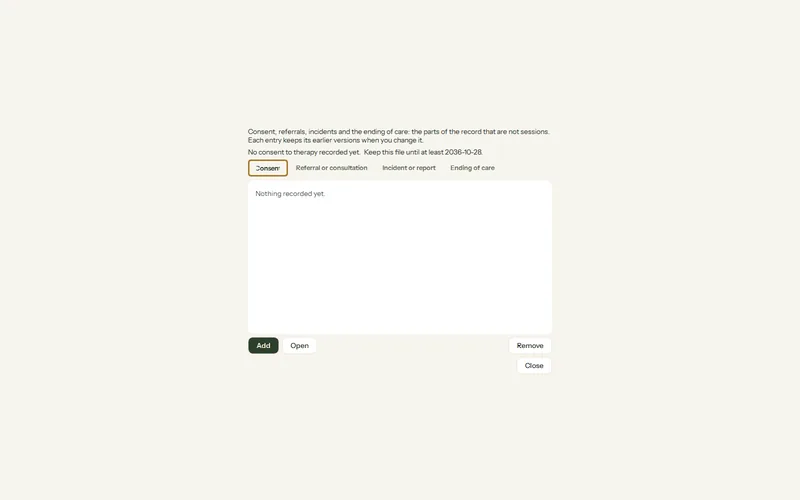
Where: Clients > a client > Consent form; ⋯ > Care record…
The consent form
Step 1: Open the client and press Consent form in the header (or ⋯ > Consent form…).
Step 2: Read it with the client. It covers recording, AI-drafted notes on your computer, voice signatures, record keeping, withdrawal and confidentiality, in any language of the app.
Step 3: Export PDF…, Copy text or Print… to give the client a copy.
Step 4: Press Consent given: it records consent with today’s date in the care record.
To make it your own, open Settings > My practice > Consent form > Open the consent form, then Edit text and Save as my template.
Send the consent form online
Step 1: Open the client and press Send consent online beside Consent form in the header, or on the client’s To do.
Step 2: If client forms are off, one plain question turns them on.
Step 3: The client gets an email with a link, opens a secure page and signs. They need no account.
Step 4: The signed consent comes back sealed for your computer and lands in the client’s file as a signed record.
The care record
- ⋯ > Care record… > Add: consent given, refused or withdrawn and how, referrals and consultations, information shared, incidents and reports. Changing an entry keeps the earlier version.
- The client’s To do says when consent is due for review (every 12 months unless you change it) and shows a withdrawal or refusal.
- ⋯ > End care… records why care ended, how the client was, outcomes, referrals and follow-up. The client moves to Discharged; the file stays and can be made active again.
Was this article helpful?
Related articles
Still need help?
Write to us. We read every message and reply within one business day.