
Book and manage appointments
Checked against the app on 24 October 2026
Click an empty time to book, or drag down to choose the length. Drag a booking to move it, right-click for everything else, and set working hours and breaks so the calendar shows when you see clients.
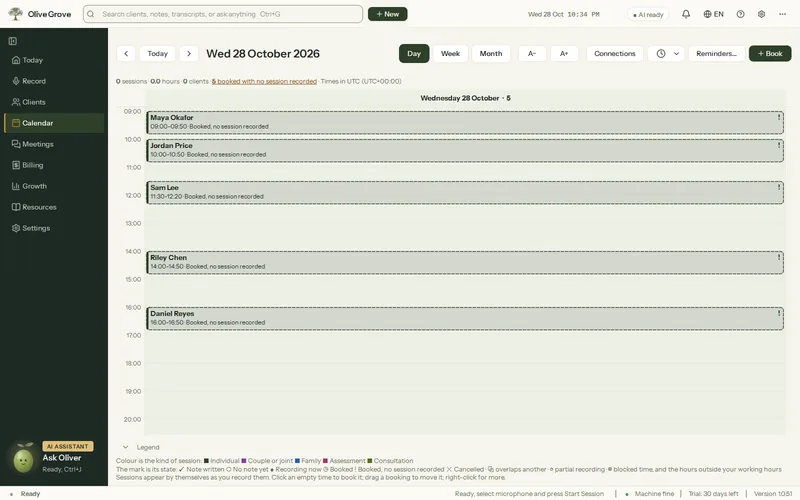
Where: Calendar (Ctrl+4)
Step 1: Open Calendar and choose Day, Week or Month.
Step 2: Click an empty time and press Book, or More options… for the client, date, time, length, type and repeats. Bookings snap to 15 minutes and last 10 to 240 minutes.
Step 3: To repeat, choose every week or every 2, 3 or 4 weeks, up to 104 times. Changing one booking offers to change the rest of the series.
Step 4: Drag a booking to move it, or its bottom edge to change its length. Right-click for Change…, Book same time next week, Cancel or Delete. Undo is offered after each change.
Step 5: After the time, mark the booking Attended, No-show or Late cancel. A missed appointment fee goes to To invoice if you set one.
Working hours and breaks
- Hours and breaks > Working hours…: set the hours you see clients each day. The rest is shaded, and booking outside them says so. Nothing is refused.
- Block time…, or click an empty time and Block this time: a break, lunch, admin, supervision or time away, once or repeating. It shows hatched and never counts as an appointment.
- Online booking offers only times inside your working hours, minus appointments and blocked time.
Was this article helpful?
Related articles
Still need help?
Write to us. We read every message and reply within one business day.