
Appointment reminders to clients
Checked against the app on 24 October 2026
Turn on automatic email reminders and clients with an email address get your reminder the day before, 2 hours before, or both. Or send a day’s reminders yourself, from your own email program.
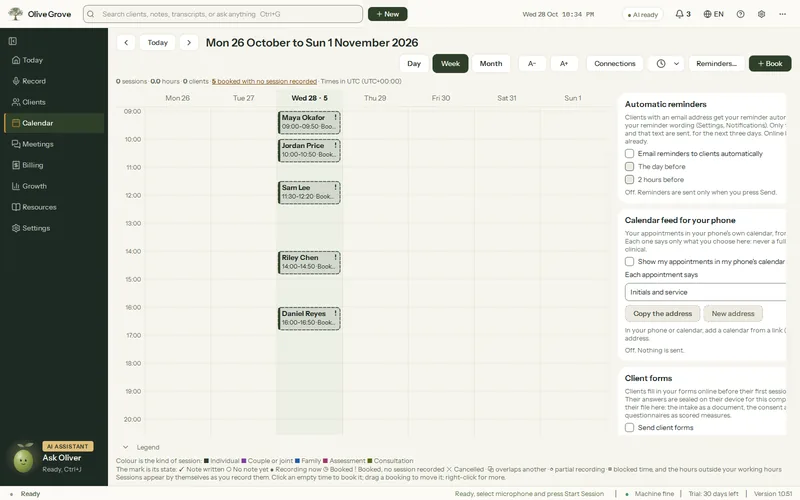
Where: Calendar > Connections > Automatic reminders
Automatic reminders
Step 1: Write your reminder wording in Settings > Notifications > Reminder message to clients. Fields such as {first_name}, {date}, {time} and {practice} are filled in for each client.
Step 2: Open Calendar > Connections > Automatic reminders and tick Email reminders to clients automatically.
Step 3: Choose The day before, 2 hours before, or both. The panel says how many reminders are scheduled.
- It covers appointments booked in the app or synced from your calendar, for clients with an email address. Online bookings are reminded already.
- Only the next three days are sent to the reminder service: each appointment’s time, the client’s email and your reminder text, nothing else. They are removed once the appointment has started.
- It needs internet and a subscription, and is off until you turn it on.
Reminders sent from your own email
Open Calendar > Reminders…. Each of the day’s booked clients has a reminder already written. Open all reminders opens them in your email program, ready for you to press Send; for a client without an email address the text is copied, for a text message. The app sends nothing itself here.
By text message or WhatsApp
- Right-click a booking in Calendar and choose Text a reminder… or Send by WhatsApp…. Your own messaging app opens with the reminder written and the client’s number filled in; you press Send. Olive Grove sends nothing itself.
- The number comes from the client’s file. A number without a country code gets your practice country’s code; if none can be worked out, Olive Grove asks for it once.
- To have a Text or WhatsApp button on each line of Calendar > Reminders…, choose it in Settings > Notifications > Text reminders in the Reminders list.
- Each reminder you send this way, or by email, is recorded in the client’s activity.
Was this article helpful?
Related articles
Still need help?
Write to us. We read every message and reply within one business day.