
Set up online booking
Checked against the app on 24 October 2026
Clients book themselves on your own page, inside your working hours. They get a confirmation and reminders by email and can change or cancel until the time you set. Bookings appear in your calendar.
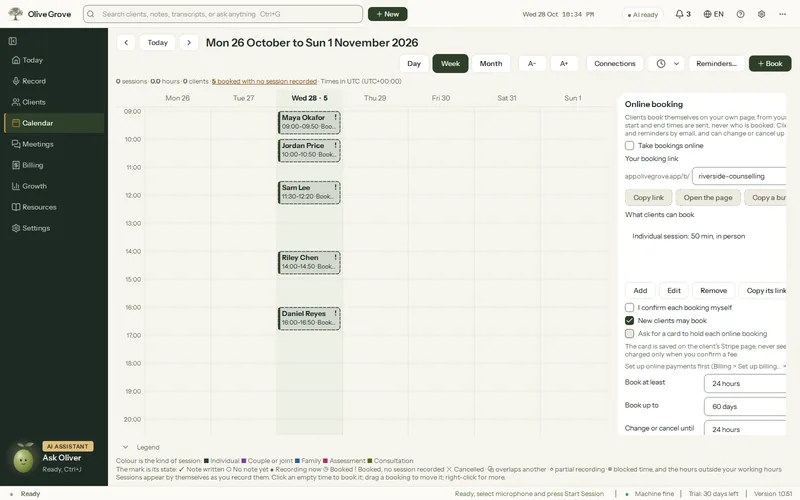
Where: Calendar > Connections > Online booking
Step 1: Set your Working hours first (Calendar > Hours and breaks). Only times inside them, minus appointments and blocked time, are offered.
Step 2: Open Calendar > Connections > Online booking and tick Take bookings online.
Step 3: Under What clients can book, add up to 12 services: a name, a length, an optional price, in person or online in your video room, and whether new clients may book it.
Step 4: Set the rules: Book at least (hours ahead), Book up to (days ahead), Change or cancel until (hours before), Time between sessions, and the Page language (English or French).
Step 5: Choose I confirm each booking myself if you want to approve each request, and whether New clients may book.
Step 6: Add a few words for clients and your cancellation policy (both optional). Clients must accept the policy to book.
Step 7: Press Update my page, then Copy link and share it on your website, email signature or directory profile.
Share it
- Copy a button for your website copies a ready Book online button. Paste it into your website’s editor where HTML is allowed.
- To send people straight to one service, choose it under What clients can book and press Copy its link: the page opens with that service chosen.
Your logo and colour
- Under Your logo and colour, press Choose a logo… (PNG, JPEG or WebP; Olive Grove makes it small) and Colour… to pick your colour. Remove the logo and Use the standard colour undo them.
- They show on your booking, appointment, card and portal pages. The pages adjust your colour where needed so text on it stays readable, in light and dark mode.
When a client books
- Instant booking: the client is confirmed at once, and the booking reaches your calendar the next time Olive Grove checks, every few minutes while it is open.
- If you confirm each booking: the request waits under Waiting for you. Press Confirm or Decline; the client is emailed either way.
- The client gets reminders 24 hours and 2 hours before, and a link to change or cancel. Emails are sent in your practice’s name, with replies coming to you.
Was this article helpful?
Related articles
Still need help?
Write to us. We read every message and reply within one business day.