
Connect Google, Outlook, iCloud or another calendar
Checked against the app on 24 October 2026
Paste your calendar’s private iCal address to read its appointments into Olive Grove. It syncs every 15 minutes, read only, and works with Google, Outlook or Microsoft 365, iCloud and others.
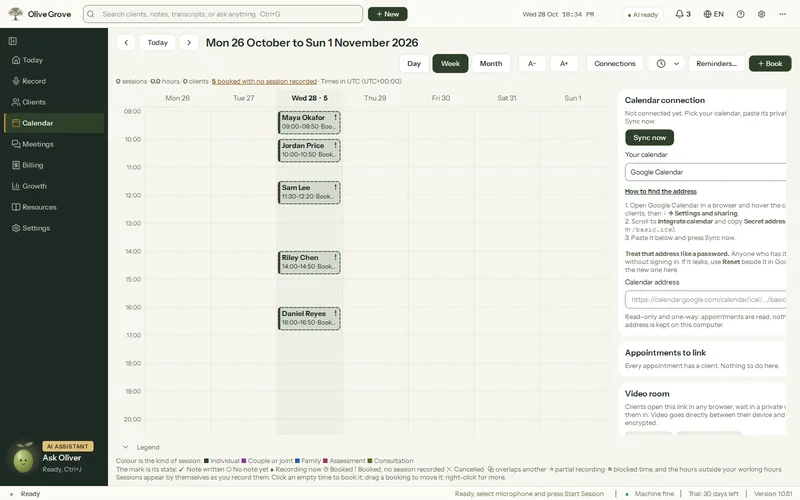
Where: Calendar > Connections > Calendar connection
Step 1: In your calendar app, find the private iCal (.ics) address of the calendar. The panel in Olive Grove gives the steps for Google, Outlook or Microsoft 365, iCloud and Jane.
Step 2: In Olive Grove, open Calendar > Connections > Calendar connection and paste it into Calendar address.
Step 3: Press Sync now. The panel says “Connected. Last synced…”.
Step 4: Under Appointments to link, link each appointment with no client to a client, or Create client. Titles that name exactly one client are linked by themselves.
- One calendar address at a time. Nothing is written back to it.
- Events from the last 60 days onward are read, repeats are expanded and times are shown in your time zone. A booking cancelled there shows as cancelled here; your attendance marks are kept.
- The address is fetched with no other data. Remove it to stop.
Was this article helpful?
Related articles
Still need help?
Write to us. We read every message and reply within one business day.