
See your appointments in your phone’s calendar
Checked against the app on 24 October 2026
Turn on the calendar feed and subscribe to its address in your phone’s or computer’s calendar: your appointments appear there and stay up to date, labelled by initials and service only. Nothing clinical leaves your computer.
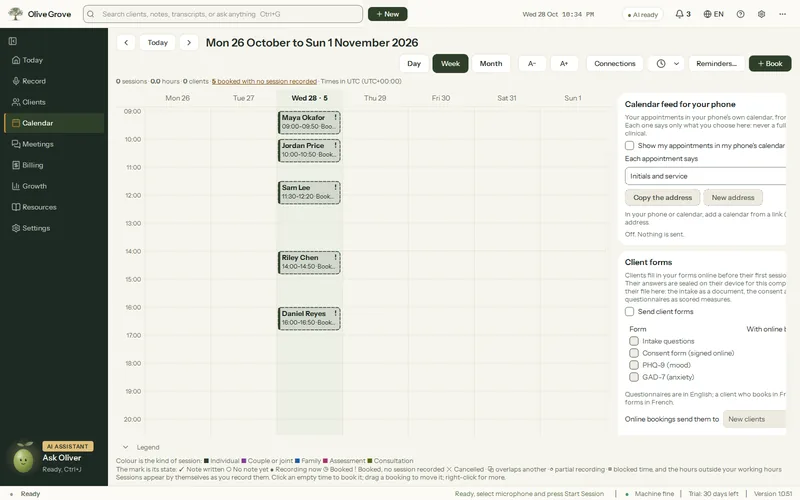
Where: Calendar > Connections > Calendar feed for your phone
Step 1: Open Calendar > Connections > Calendar feed for your phone and tick Show my appointments in my phone’s calendar.
Step 2: Under Each appointment says, choose Initials and service, Service only or Just “Appointment”.
Step 3: Press Copy the address.
Step 4: In your phone or calendar, add a calendar from a link (often called subscribe, or “From URL”) and paste the address. In Google Calendar it is under Other calendars, From URL; on an iPhone, look for Add Subscription Calendar in the Calendar app or its settings; in Outlook, Add calendar, Subscribe from web.
- The feed covers the last 30 days and the next 180. Cancelled appointments show as cancelled.
- Olive Grove updates the feed every few minutes while it is open; your calendar reads it on its own schedule, often every few hours.
- The panel says when a calendar last read the feed.
Only each appointment’s times and its short label are kept by Olive Grove’s service for the feed; appointments synced from another calendar just say “Appointment”. Turning the feed off empties it.
Was this article helpful?
Related articles
Still need help?
Write to us. We read every message and reply within one business day.