
 Features: 15 in this area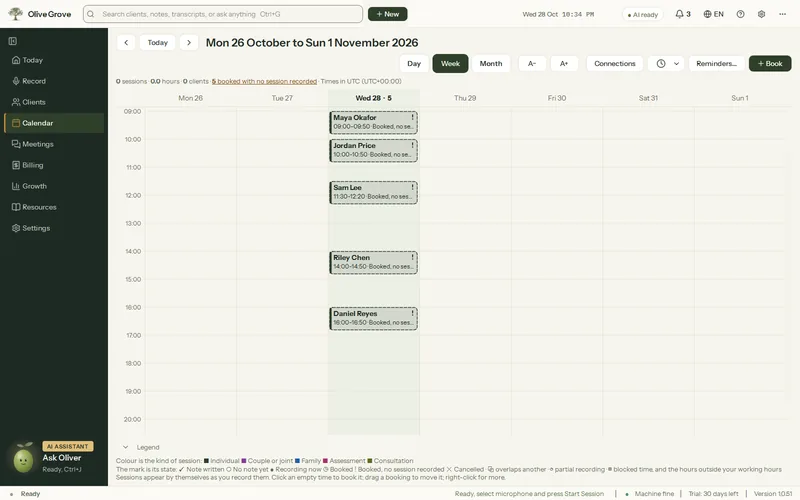
Calendar
A calendar that knows how a practice runs: your hours, your breaks, and the clients who come every week.
- Day, week and month. Recorded sessions appear by themselves, marked “Note written” or “No note yet”.
- Repeating bookings. Every week or every 2, 3 or 4 weeks, up to 104 times. Change one and you are offered the same change for the rest; cancel the rest together, with Undo.
- Blocked time. Breaks, lunch, admin, supervision or time away, once or repeating, for part of a day or whole days. Never counted as an appointment.
- Working hours. The rest of the day is shaded, and booking outside your hours says so. Nothing is refused.
- Attendance marks. Attended, no-show or late cancel; a missed appointment fee goes to To invoice if you set one.
- Connect a calendar. Read Google, Outlook or Microsoft 365, iCloud, or Jane through Google, by private iCal link every 15 minutes. Nothing is written back.
All 15 features in this part
- Day, week and month views
- See bookings and recorded sessions by day, week or month. Sessions appear by themselves, marked "Note written" or "No note yet".
- Calendar colours and overlaps
- Colour shows the kind of session: individual, couple or joint, family, assessment, consultation. A small mark in the corner shows its state, and another marks sessions that overlap another at the same time. Overlapping sessions sit side by side.
- Book an appointment
- Click an empty time to book, or drag down to choose the length, or open the full form for client, date, time, length, type and weekly repeats.
- Blocked time
- Block time for a break, lunch, admin, supervision or time away, once or repeating, for part of a day or whole days. It shows hatched on the calendar, booking over it says so, and it never counts as an appointment.
- Working hours
- Set the hours you see clients on each day. The calendar shades the rest, and booking outside them says so. Nothing is refused.
- Repeating bookings
- Book every week or every 2, 3 or 4 weeks, a set number of times. Changing one booking offers to change the rest of the series the same way, and the rest can be cancelled or deleted together, with Undo.
- Move, change or cancel a booking
- Drag a booking to move it or its bottom edge to change its length; right-click for everything else, with Undo after each change.
- Attendance marks
- Mark a booking Attended, No-show or Late cancel, or restore it; a missed appointment fee goes to To invoice if you set one.
- Log a past booking
- For a booking that is over with nothing recorded, open Add a session already filled in with the client, date, time and length.
- Calendar text size and legend
- Make the calendar's text larger or smaller, and open or fold the legend of colours and marks.
- Connect a calendar by link
- Paste your calendar's private iCal address to read its appointments into the app, with steps for Google, Outlook or Microsoft 365, iCloud and Jane.
- Automatic calendar sync
- The connected calendar is read shortly after the app opens and every 15 minutes, with repeats expanded, times shown in your time zone, and cancelled bookings shown as cancelled.
- Appointments to link
- Synced appointments with no client are listed so you can link each to a client or create a file from it; titles naming exactly one client are linked by themselves.
- Practice time zone
- The time zone is taken from this computer, or chosen, and is named the same way everywhere, by its official name and its UTC offset ("America/Toronto (UTC-04:00)"): in Settings, on the calendar, in reminders to clients, in letters and on invoices.
- Reminder wording
- Change the reminder text sent to clients, with fields filled in for each one.