
 Features: 75 in this area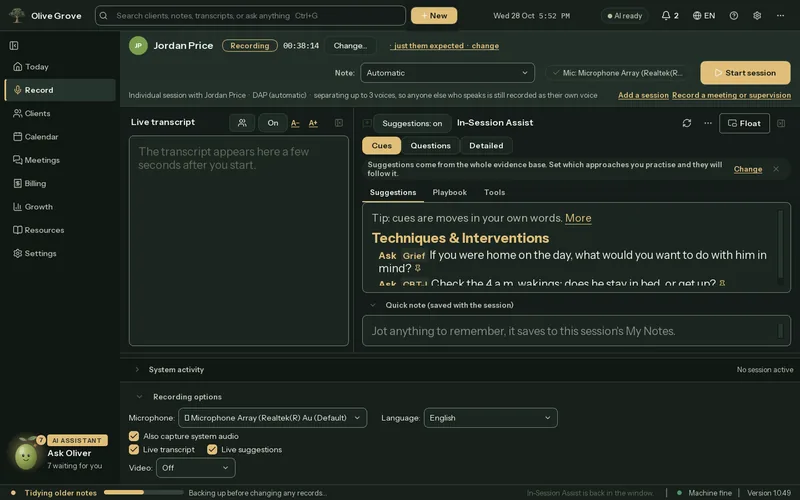
Before a session
Open the app and your day is already laid out: who is coming, what is due, and what to pick up from last time.
- Today. The appointment on now or next, today’s schedule, what you still owe and clients to think about.
- Since last session. When you last met, homework to ask about, open goals, latest scores and risk prompts, read from the record without AI.
- Measures for today. What to give this client today: a core set at assessment, plus screens triggered by what they have said.
- Session language. About 100 languages or Auto-detect, kept as spoken or translated to English as it transcribes.
- Your video room. One permanent link, a waiting room in the client’s browser, and you choose who comes in.
- Reminders to clients. A reminder already written for each booked client, opened in your own email program, one at a time or all at once.
All 36 features in this part
- Today page
- The landing page greets you and shows your day: the appointment happening now or next, today's schedule (clients by their initials), what is waiting for you, clients to think about, risk flags, recent sessions and the coming week.
- Oliver's panel
- Click Oliver at the foot of the menu, or press Ctrl+J, and his panel slides out: Waiting for you, the same items as on Today, each with Open (or Log it) and Not now; and Ask Oliver, a question for Consult, with Talk with Oliver.
- Ask Oliver
- Oliver at the foot of the left menu, marked AI assistant, with a line on what he is doing: ready, how many things wait for you, writing a session note, or listening. It never names a client. Click it or press Ctrl+J for his panel.
- Resources
- Our sites, tools and guides in one place: your account, the help centre, guides, what's new, service status and support, plus resources for your region. Each opens in your browser.
- Now and Next card
- Shows the appointment on now, or the next one, with the session type, the state of the last note, any measures due, and one button to start recording.
- Today's schedule
- Today's bookings, each marked documented, no-show, now, next or not recorded, with buttons to start the session, open the file or log it.
- Records protection strip
- A line at the top of Today, shown only when something needs fixing: a failed or missing backup, sign-in off, notes waiting for a signature, or setup unfinished.
- Clients to think about
- Clients who may need a clinical decision, such as a risk flag with no session since, open goals with no recent session, scores not moving, or no plan.
- Arrange the Today cards
- Drag a Today card up or down its column, fold it to its title, or open its list in a large window. The layout is remembered.
- The bell
- A count in the header that lists what is waiting for you: today's appointments, notes to write and sign, measures due, invoices to follow up, sessions to invoice, setup, subscription and updates.
- Desktop notifications
- Windows notifications before each appointment (with any measure due), each morning, at the end of the day for notes to write, and weekly for unsigned notes, invoices to follow up, an old backup and unfinished setup.
- Choose the client for a session
- Pick who the session is for at the top of Record. Their playbook, brief and kept suggestions load, and the previous client's material is cleared from the screen.
- Note format before the session
- Choose the note format for this session, or leave it on Automatic so it follows who is in the room.
- Others expected in the room
- A link under the setup bar that says how many people beyond the chart are expected, so the right number of voices is separated. Click it to change.
- Since last session brief
- A brief read straight from the record: when you last met, homework to ask about, what you planned, open goals, latest scores, measures due, how the last session ran and risk prompts.
- Homework follow-up
- Homework set in a note's plan is stored, and the next session asks "Did they do it?". Your answer goes into that session's note.
- Suggested measures for this client
- Suggests what to give today: a core set at a first assessment, up to 3 screens triggered by what the client has said, and the Session Check at the end.
- Microphone and system audio
- Pick any Windows microphone and choose whether to also record what the computer plays, the other side of a video call.
- Microphone check
- The first time a microphone is used after the app opens, a short window shows a level bar so you can see it hears you before recording.
- Session language
- Choose the language spoken in the session, Auto-detect, or a "→ English" option that translates to English as it transcribes.
- French and English with automatic switching
- The language list adds "French" and "English and French (switches)", and Auto-detect switches language automatically when the speakers change language.
- Video source
- Optionally record video with the audio, from a screen area you drag out (such as the call window) or a webcam.
- Recording options fold
- The microphone, language, call audio, live suggestions and video rows fold to one summary line.
- Same client check
- Pressing Start while the last session's client is still selected asks whether this is another session for them, so the next client is not recorded into the wrong chart.
- Online booking
- Clients book themselves on your own page, inside your working hours. They get a confirmation and reminders by email, and can change or cancel until the time you set. Bookings appear in your calendar.
- Card on file and missed-appointment fees
- Clients who book online can save a card on your own Stripe page to hold the booking. After a no-show or late cancellation you charge the service's fee once you confirm; it is filed in Billing as a paid invoice.
- Automatic reminders
- Clients with an email address get your reminder automatically the day before, 2 hours before, or both, written from your own reminder wording. Covers appointments booked in the app or synced from your calendar.
- Calendar feed for your phone
- Your appointments in your phone's own calendar, or Google or Outlook, from a private address you subscribe to. Each event says only what you choose: initials and service, the service only, or just "Appointment". Updated within minutes while the app is open.
- Client forms
- Clients fill in your intake questions, sign your consent form and answer the PHQ-9 or GAD-7 online before their first session. Answers land in their file: the intake as a document, the consent as a signed record, questionnaires as scored measures.
- Secure messages from clients
- Clients write to you from their own page, the link in their booking emails. Each message is sealed on their device for this computer, lands in their client file as a document marked unread, and you reply by email.
- Video room
- One permanent link for your clients' video sessions. Set the room name and the name clients see, copy the link, change it, or open the room.
- Client waiting room
- Clients open your link in any browser, check camera and microphone, type their name, agree to the video session, choose whether they agree to recording, and wait.
- Someone is asking to join
- A strip at the top of the window names who is waiting, the client it probably is from today's calendar, and whether they agreed to recording. Let them in, turn them away or send a message.
- Appointment reminders to clients
- A day's booked clients, each with a reminder already written, ready to open in your own email program or copy for a text message, one at a time or all at once.
- Reminders by text or WhatsApp
- Text a booked client their reminder, or send it by WhatsApp, from your own phone apps. The same wording as the email reminder, written for you, to the number on the client's file; you press Send. Each one is noted in the client's activity.
- Unencrypted disk warning
- Before recording on a computer whose disk is known to be unencrypted, the app warns you and lets you go ahead or cancel.