
Hold video sessions in your video room
Checked against the app on 24 October 2026
Set up one permanent link for your clients’ video sessions. Clients wait in a private waiting room; you see who is asking, let them in, and choose whether to record. The video goes directly between the two devices, encrypted.
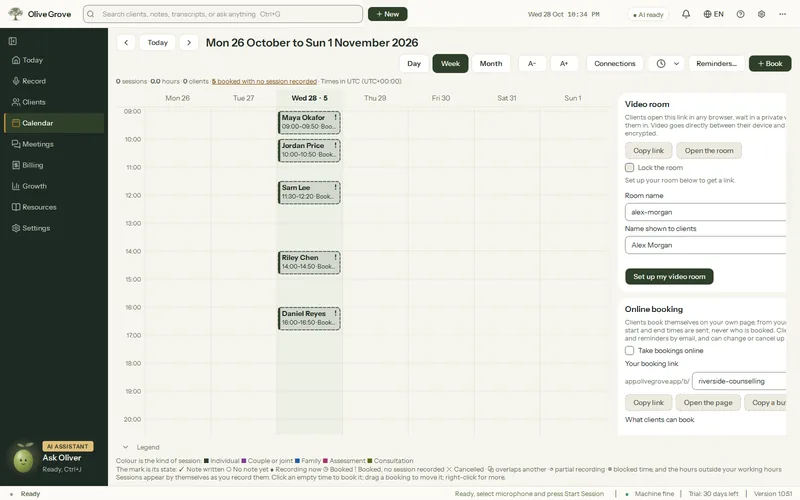
Where: Calendar > Connections > Video room
Step 1: Open Calendar > Connections > Video room and press Set up my video room.
Step 2: Choose the room name (3 to 40 lowercase letters, numbers or dashes) and the name clients see.
Step 3: Press Copy link and share it with your clients, in your email signature or your reminders. It stays the same.
Step 4: When someone asks to join, a strip at the top of the window names them, the client it probably is from today’s calendar, and whether they agreed to recording. Press Let in, Turn away or Message.
Step 5: After you let someone in, the app asks whether to record. If they did not tick recording, “Not now” is the default.
- In the session window you can remove someone, let a partner in, Lock the room so nobody new can ask, or end it for everyone.
- Clients waiting never see each other. Up to 10 people can wait at once.
- Change the link stops the old one at once, so send your clients the new one.
Was this article helpful?
Related articles
Still need help?
Write to us. We read every message and reply within one business day.