
Live cues with In-Session Assist
Checked against the app on 24 October 2026
Beside the live transcript, In-Session Assist offers two or three short cues (Explore, Reflect, Notice, Validate or Try) drawn from the client’s formulation and your approach. Glance, use what helps, ignore the rest.
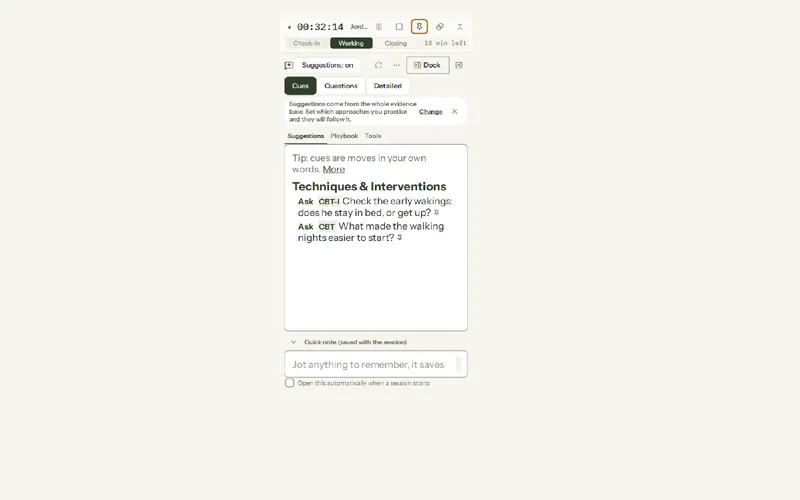
Where: Record > In-Session Assist
A cue names the move and a few words of the client’s own material, for you to phrase. Say it under a cue shows one way to put it. A Safety check stands apart, with its own sign and colour.
Make it fit how you work
Step 1: In Settings > AI > My modalities, mark each approach Core, Occasional or Don’t use. Cues, techniques and playbooks follow your choices.
Step 2: Mark cues Useful or Not useful with one tap. After three marks the next cards learn what you find worth a glance. Marks are kept on this computer.
Step 3: Open More (⋯) > Customize the live suggestions… to choose the layout, how many cues, how often they refresh (every 30 seconds to only when you press Refresh) and whether the card waits while you read.
Other tools beside the transcript
- Pin keeps any cue, guide question or tool on screen; pins come back at the client’s next session (up to 6 per client).
- Ask (Ctrl+K): type a question and get a short answer from the last 4 minutes, the playbook and the plan, or tap one of six ready questions such as “What am I missing?”.
- Session focus: a standing steer such as “stay on the grief” that shapes every cue and answer.
- Techniques (46 in 10 groups) and Session Guide (individual, couples, family, every session), with scripts to read out for consent, confidentiality and more.
- Tools that fill themselves in: start a worksheet such as a thought record or safety plan, and the AI fills each line from what is said. What you type stays as you wrote it.
- Float (Ctrl+Shift+D) lifts the assistant into a small window that stays on top of a video call.
Was this article helpful?
Related articles
Still need help?
Write to us. We read every message and reply within one business day.