
Your first session, step by step
Checked against the app on 24 October 2026
Choose the client on Record, check the microphone, press Start session, and press End session when you finish. The accurate transcript and a draft note follow in the background, for you to read, correct and sign.
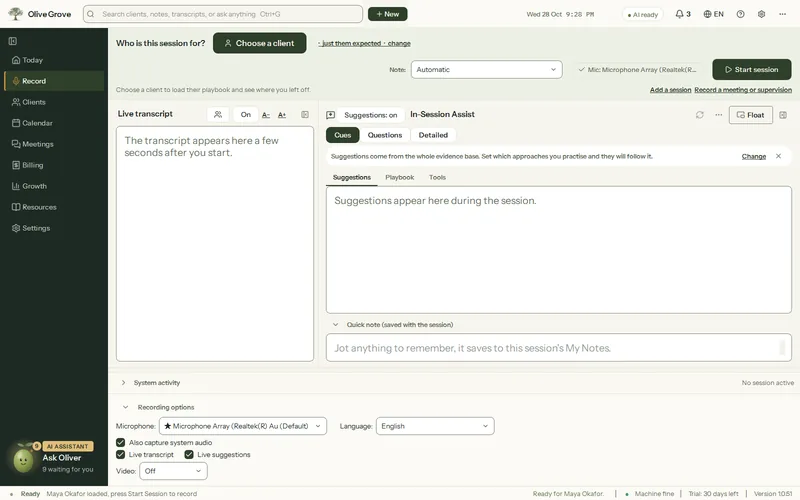
Where: Record (Ctrl+2)
Step 1: Open Record. At the top, under “Who is this session for?”, choose the client, or create them with New client (Ctrl+N).
Step 2: Leave Note on Automatic, or pick a format such as DAP or SOAP.
Step 3: Check the microphone chip. For an online session keep Also capture system audio on, so the other side of the call is recorded.
Step 4: Press Start session (Ctrl+R). The first time, a short microphone check shows a level bar.
Step 5: Work as usual. The live transcript appears within seconds, and In-Session Assist offers short cues beside it. Pause with Ctrl+Shift+Space.
Step 6: Press End session (Ctrl+E) and confirm. The footer shows the accurate transcript and the note being written.
Step 7: Open the note from the footer or the client’s file, read every line, correct it, and press Sign note.
Was this article helpful?
Related articles
Still need help?
Write to us. We read every message and reply within one business day.