
Record a session
Checked against the app on 24 October 2026
Choose the client, who is in the room and the note format on Record, then Start session. Pause whenever recording should stop; End session starts the accurate transcript and the draft note.
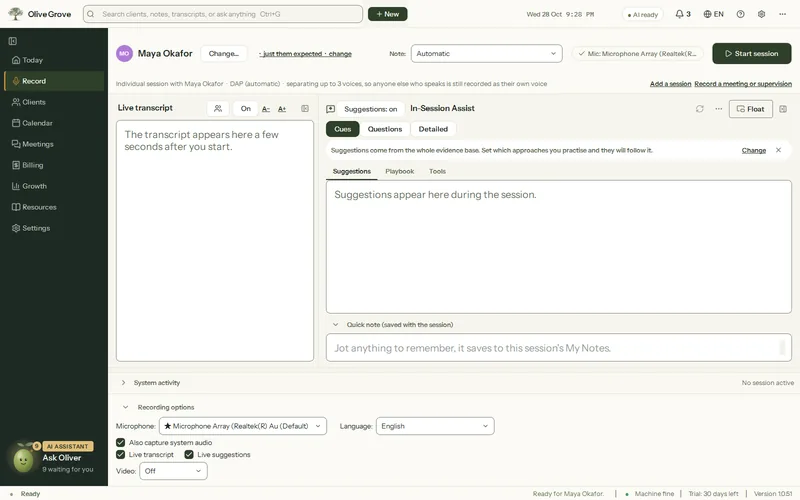
Where: Record > Start session (Ctrl+R)
Before you start
Step 1: Choose the client under “Who is this session for?”. Their playbook, the brief since the last session and any kept cues load; the previous client’s material is cleared from the screen.
Step 2: For a couple or family, tick who is actually present beside In the room. That decides an individual or joint session, the note format and which files the session goes into.
Step 3: Choose the note format, or leave Automatic: it picks Couples / Relational when two or more people are present, otherwise your usual format.
Step 4: If more people than the chart will speak (an interpreter, a parent), use the link under the setup bar to say how many others are expected, so the right number of voices is separated.
During the session
- Pause (Ctrl+Shift+Space): paused time is left out of the recording, the transcript, any video and the session length.
- Quick note: jot anything to remember. It is saved every 20 seconds and kept with the session.
- Questionnaires under In-Session Assist > Tools: give a measure on the spot. See Give a questionnaire.
- Risk watch: phrases about suicide, self-harm, harm to others, abuse or overdose in a client’s words raise an amber banner with the quote and the time, without using AI.
When you finish
Step 1: Press End session (Ctrl+E), then confirm. An ended session cannot be resumed.
Step 2: The whole recording is transcribed again with the more accurate model, the speakers are checked, and the note is drafted. The footer shows each step.
Step 3: When the note is ready, the footer offers Open note and Copy note. Then review and sign it.
Was this article helpful?
Related articles
Still need help?
Write to us. We read every message and reply within one business day.