
Record online sessions and video
Checked against the app on 24 October 2026
For a session on Zoom, Teams or any call, keep “Also capture system audio” on: your microphone records you and the computer’s sound records the other side. Video of a screen area or a webcam can be added.
Where: Record > Recording options
Step 1: On Record, open Recording options (the chevron) to see the microphone, language, call audio, live cues and video rows.
Step 2: Choose your microphone. The last one is remembered.
Step 3: Leave Also capture system audio ticked. It records what the computer plays through the Windows default output, which is the other side of the call. It is on by default.
Step 4: To keep video too, set Video to Screen region and press Select area… to drag around the call window, or choose Webcam.
Step 5: Start the session as usual.
With two streams, telling therapist from client is reliable: your microphone is you, the call audio is the client. Two partners on the same call are still told apart by their voices, so check the labels after a couples session.
Video recording
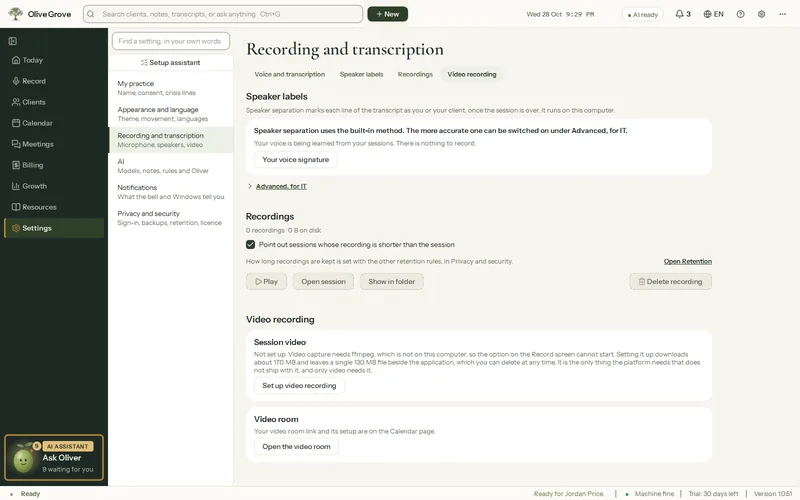
- Video needs a component of about 170 MB. The app fetches it by itself at launch, or press Set up video recording in Settings > Recording and transcription > Video recording.
- Video is saved as MP4 at 15 frames a second; the session’s sound is added once the transcript is made. It pauses with the session.
- If video capture fails, the audio carries on and “Video not recording” appears.
Was this article helpful?
Related articles
Still need help?
Write to us. We read every message and reply within one business day.