
 Features: 41 in this area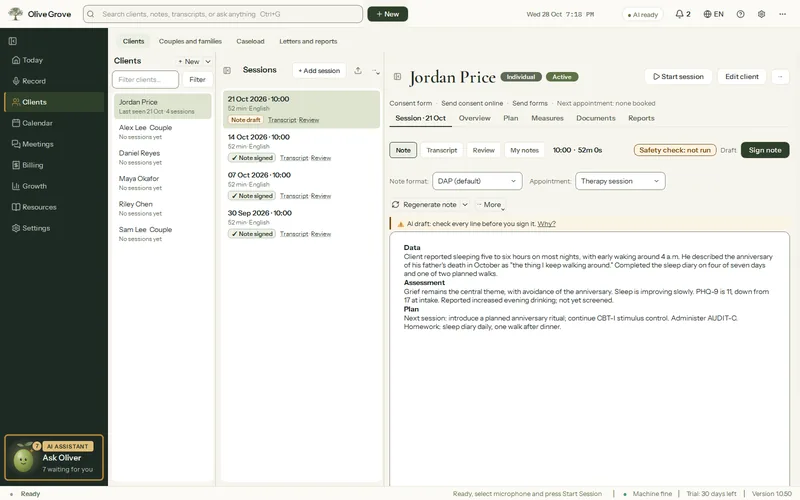
After a session
When you end the session, the accurate transcript and your draft note start on their own, in the format you use.
- Accurate transcript. The whole recording is transcribed again with the more accurate model, and the voices are separated.
- Draft note. DAP, SOAP, BIRP, GIRP, intake or couples, in headings and short bullets, the client’s words kept as they said them. It is marked as a draft, and nothing is signed until you check, correct and sign it.
- Safety check. A second pass flags risk the note missed and statements the transcript does not support. It never changes the note.
- Sources beside the note. Put the cursor in a sentence to see the transcript lines it most likely came from.
- Clinical review. A supervisor’s read of the session: your strengths, areas to grow, how closely it followed its approach and one thing to try next time. The formulation is updated too, with every version kept.
- Meetings. Record supervision, a consultation or a team meeting, or write one up from a recording or your notes: topics, decisions, action items and dates, with the transcript kept.
- Sessions you did not record. Add one from your own notes, typed or dictated (no audio is kept), import a phone or Zoom recording, or bring in past notes.
All 41 features in this part
- Accurate transcript
- After the session, the whole recording is transcribed again with the more accurate model and replaces the live transcript before the note is written.
- Speaker separation
- The voices are separated into therapist and client, or each partner, with voice signatures from a small speaker-recognition model on this computer, and the labels are checked again against the whole recording before the note is written.
- Who said this line?
- Right-click a line of a session's transcript to say who said it, or to separate a voice that is more than one person into two and name each.
- Therapist and Client put right, live
- From about two minutes into a session, if what each person says shows the therapist and client were labelled the wrong way round, the live transcript shows them the right way round, and risk watch reads the corrected labels.
- Fix speaker labels
- Swap therapist and client on every line, give any line to anyone (a name, Therapist, Client or Background), confirm the labels, or work them out again from the audio. Everything that depends on who spoke is recalculated, and voice signatures learn from it.
- Draft note
- A note is drafted from the accurate transcript in the session's format, marked as an AI draft for you to check, correct and sign.
- Safety check
- After each note, a second AI pass looks for risk the note missed and statements the transcript does not support. It only flags; it never changes the note.
- The review bar on a draft note
- What the safety check found sits in one line under the note's toolbar: Risk, Conflicts, Unsupported and Missing, each with a count. A chip lists only its items; clicking one shows its line in the note. Each can be resolved, dismissed or never flagged again.
- Clinical review
- An AI review of the session: overview, your strengths, areas to grow, how closely the session followed its approach (what fitted, what was missed, one thing to try next time), next steps tagged by modality, and risk and safety.
- Case conceptualization update
- The client's formulation is updated from each session and every version is kept.
- Playbook rebuilt after sessions
- The client's playbook of interventions is kept up to date as sessions are written up, as often as Keep up to date says.
- How current a summary is
- The playbook, the formulation and the treatment plan each say which session they were last updated after, and how many sessions they have not seen, with Update now. A summary that is behind is marked in the accent colour.
- Keep up to date
- Choose how often the playbook, formulation and plan are rebuilt: after every session, every few sessions, or only when you ask. One default for all clients, and each client file can choose its own.
- After each session settings
- Choose which AI steps run after each session, how often the playbook is rebuilt, how often measures are prompted, and when a silent session ends itself.
- Sources beside the note
- Put the cursor in a sentence of the note and the transcript lines it most likely came from appear beside it, with times and a Play button.
- Refine part of a note
- Select part of a draft note and choose Refine this part: Shorter, Clearer, More clinical wording, Fix grammar, or your own instruction. Only the selection is rewritten, on this computer; you see it beside the original and press Replace or Cancel.
- Tidy note formatting
- Puts a draft note into section headings and one level of bullets, related points grouped under a short bold label, without changing a word. New notes are written this way.
- The client's own words
- A note keeps what the client said in their words, in quotes, rather than turning it into a diagnosis, a severity or a risk level that your notes and the transcript never use.
- Check my notes
- Looks through every note, signed and draft, for diagnosis, severity or risk wording that the session's own transcript or notes never use, and lists each one with a button to open it.
- Notes that need a look, on Today
- When Check my notes finds notes from the last 3 weeks worth a look, Today shows one small line, "N notes need a look", and the bell one item. Open goes to Check my notes with the last 3 weeks already checked.
- Choose which notes to check and fix
- Narrows Check my notes to a period and a client, and lets you tick the notes to act on, with Select all and a live count. The buttons say what they act on.
- Fix all drafts
- Writes every draft Check my notes flagged again, in the background, with the same style and fidelity checks as a new note. They stay drafts, and the earlier text is kept in Versions.
- Review signed notes
- One screen for every flagged line of your signed notes: the line as signed, a correction that changes only the flagged words, and the line of the session behind it. Accept, edit or keep each one, then apply.
- Sign note
- Confirm you have read the note and stand behind it. It becomes read-only and the signed text is kept.
- Supervisor co-signature
- If you choose, signed notes wait for your supervisor's co-signature. They co-sign at your computer with their own PIN or password, or return the note with comments; or you send them a password-protected PDF and record their reply.
- Unlock to amend
- Make a signed note editable again after giving a reason. The reason goes to the activity log and the signed version is kept.
- Regenerate the note
- Write the note again from the current transcript, in the same or another format, or also redo the review and conceptualization. The previous note is kept under Versions.
- Re-process from audio
- Transcribe a session again from its saved recording and rewrite the documents chosen under After each session.
- Debrief
- When a note is ready, Consult offers a short debrief: up to three questions about the session, then what went well and one thing to try next time.
- Copy note
- Copies the note with headings and bullets but no fonts or colours, so it pastes cleanly into another records system, Word or an email.
- Session warnings
- The session warns when the recording covers less than 90 percent of the session, when more voices were heard than expected, or when the voices do not fit the note format.
- Empty room trimmed
- A long quiet stretch at the end of a recording, such as a session left running, is cut before transcription. The full recording is kept beside it.
- Session playback and search
- Play the recording inside the app and click a transcript line to jump to it, find words in the transcript, or open the audio or video in your player.
- How this session ran
- Your talk share, longest stretch, questions against statements, open questions, reflections and summaries, pauses and pace for the session, with how far the speakers behind them can be believed, and a trend across this client's sessions.
- Add a session from my notes
- Add a session you did not record: client, who else came, date, time, length, type and your rough notes, typed or dictated. The note can then be written from your notes.
- Mark a missed appointment
- Record a no-show or late cancellation instead of a session; it is billed with your missed appointment fee if you set one.
- Import clients or appointments
- Bring your client list, or your upcoming appointments, from another system as a spreadsheet (CSV). Columns are matched by their names, you can change any match, and you see what each row becomes before anything is added.
- Import a recording
- Bring in an audio or video file made elsewhere, such as a phone, Zoom or Teams recording. A copy is written up like a recorded session.
- Meetings: supervision, consultations and the practice
- Record a meeting, or write one up from a recording file or your own notes. Every detail is kept, organized: topics, processes as numbered steps, contacts, figures, decisions, action items and dates. The transcript is always kept too.
- Update all client files
- Rebuild, across every client, speaker labels, notes, reviews, one conceptualization per client and playbooks, with an estimate first.
- Note language
- Notes, reviews, live suggestions and Ask answers can each be written in a language of your choice, separately from the interface.