
Guide for therapists
Keeping client records safe on your own computer: sign-in, encryption, backups and lost devices
Updated 28 October 2026
Four habits protect most of what matters: a sign-in on the computer and the app with a screen that locks itself; full-disk encryption, so a lost or stolen laptop does not expose records; encrypted backups kept in at least two places, one of them away from the computer; and a plan for the day a device goes missing. None needs special skill, and most are built into the operating system. What you must do after a loss, and whom to tell, depends on where you practise.
Sign-in and screen lock
- Your own account on the computer, with a strong password or a biometric sign-in, not shared with family.
- A screen that locks itself after a few minutes, and the habit of locking it whenever you step away.
- A sign-in on the records app too, where it offers one, so a computer left unlocked does not open every file.
- Updates installed promptly for the operating system and the apps that hold records.
- A password manager and a different password for every account, with two-step sign-in on email and any online service.
Disk encryption
A password on the screen does not protect the disk. Anyone who removes the drive, or starts the laptop from another system, can read files that are not encrypted. Full-disk encryption closes that gap: without your sign-in, the disk reads as noise. On Windows it is called BitLocker or Device encryption, on a Mac FileVault; both are built in. Turn it on, and keep the recovery key somewhere safe and away from the computer.
Backups, including off-site
- Keep three copies on two kinds of storage, one of them away from the computer. This common rule of thumb survives a failed disk, a theft and a fire.
- Automate them. A backup that depends on remembering is the one that is missing when you need it.
- Encrypt every backup, and keep its password apart from the backups themselves.
- Off-site can be an encrypted drive kept at another address, or an encrypted online backup, where an online copy is allowed for health records where you practise.
- A synced folder is not a backup. A deletion or a damaged file is copied everywhere within seconds.
- Test a restore from time to time. A backup you have never restored is a hope, not a plan.
If a device is lost or stolen
- Lock or erase it remotely if you set that up, and change the passwords of accounts it was signed in to.
- Write down what happened while it is fresh: when, where, what was on it, and whether the disk was encrypted.
- Restore your records from a backup onto a replacement computer.
- Check what you must do next. Whether you must tell clients, your regulator or anyone else depends on where you practise and on whether the data could be read.
Prepare this before it happens: a one-page plan with where the backups and recovery keys are, and whom to call.
How Olive Grove helps
Olive Grove keeps records on your computer, so these habits matter. It opens with Windows Hello or your Windows password, or a password or PIN of its own; the screen locks after 15 minutes without activity (never while recording), and Ctrl+L locks it at once. It checks whether BitLocker or Device encryption protects the drive, says how to turn it on if not, and warns before recording on a disk known to be unencrypted. The app does not yet encrypt its own files, so disk encryption is the layer that protects them.
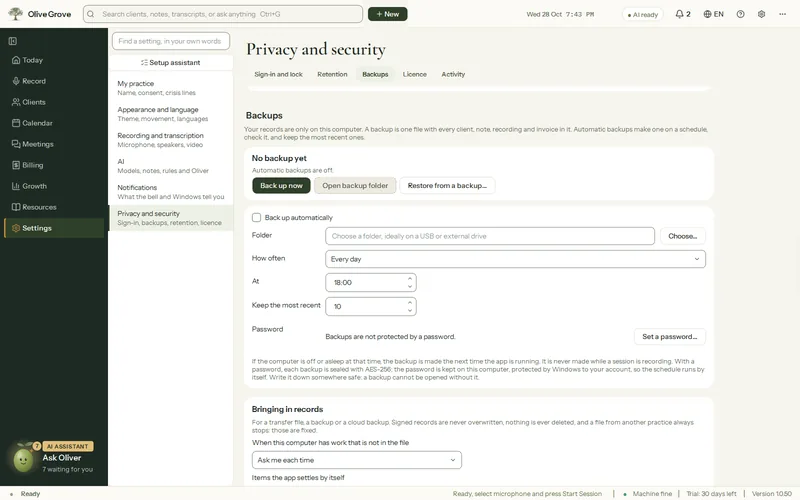
Automatic backups go to a folder you choose, such as a USB drive; each is checked after it is made, sealed with AES-256 when you set a password, and the most recent are kept. The app warns about cloud-synced folders and folders on the same drive. An optional cloud backup, off until you turn it on, is sealed on your computer with a recovery code only you hold. See Sign-in, lock and disk encryption, Back up and restore your records, Cloud backup with your recovery code and Security.
Common questions
Sources
- International Organization for Standardization and International Electrotechnical Commission (2022). ISO/IEC 27002:2022, Information security, cybersecurity and privacy protection: Information security controls. www.iso.org/standard/75652.html
This guide is general information for clinicians, not legal or clinical advice about a particular client. What applies to you depends on where you practise and on your regulator or professional body.
More guides
- DAP, SOAP, BIRP and GIRP notes: the formats, with examples
What each progress note format means, when to use it, and a short example of each: DAP, SOAP, BIRP and GIRP, plus intake and couples notes, for therapists and counsellors.
- Private AI for therapy notes: what “local” means, and what to ask any AI scribe
How AI note tools for therapists handle session audio, where the AI runs, cloud versus on-your-computer AI, and ten questions to ask any AI scribe before you record a client.
- Consent to record therapy sessions: what to explain, how to ask, how to keep the answer
How to ask a client for informed consent to record a therapy session: what to explain, how to ask, how to note the answer, and what to do when consent is withdrawn.
- Measurement-based care with the PHQ-9 and GAD-7: what they measure, how often, and how to read change
Measurement-based care with the PHQ-9 and GAD-7: what each measures, the score bands from the original papers, how often to give them, and how to read change over time.
- Documenting couples and family sessions: whose record, what goes where, and privacy between partners
How to document couples and family therapy: whose record it is, what goes in a joint note and what stays in an individual file, and privacy between partners.
- Writing a treatment plan with measurable goals: goals, objectives, interventions and review dates
How to write a therapy treatment plan with measurable goals: goals in the client’s words, objectives you can check, the interventions that serve them, and review dates, with an example.
- Using AI for clinical documentation responsibly: a checklist for therapists
A checklist for therapists using AI to draft clinical notes: client consent, where the data goes, reviewing every line, bias, and why the clinician signs.