
Back up and restore your records
Checked against the app on 24 October 2026
Turn on automatic backups to a folder you choose, such as a USB drive. Each backup is checked after it is made, sealed with AES-256 when you set a password, and the most recent ones are kept. Restore checks a backup before it replaces anything.
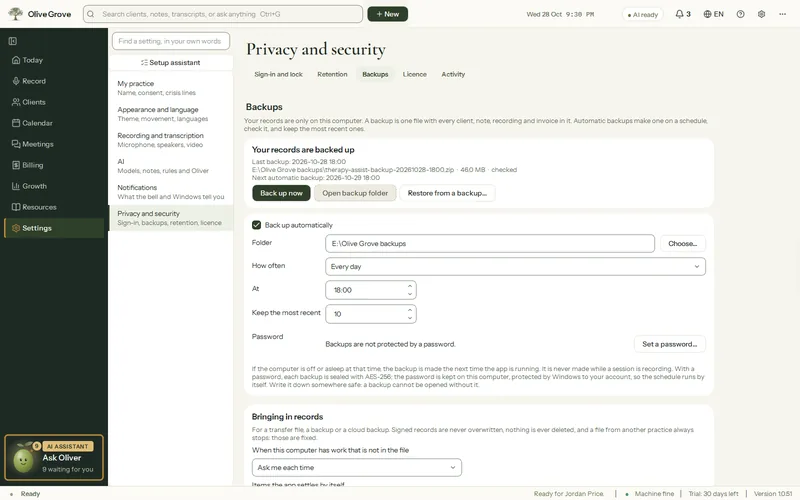
Where: Settings > Privacy and security > Backups
Step 1: Open Settings > Privacy and security > Backups and tick Back up automatically.
Step 2: Press Choose… and pick a folder on a USB or external drive. The app warns about cloud-synced folders and folders on the same drive.
Step 3: Set How often (daily at 18:00 by default) and Keep the most recent (10 by default).
Step 4: Press Set a password… (at least 8 characters). Each backup is then sealed with AES-256; the schedule still runs on its own.
Step 5: Press Back up now once to check it works.
Restore from a backup
Step 1: Open Settings > Privacy and security > Backups > Restore from a backup… (or More ⋯ > Records and backup > Restore…). Not available while recording.
Step 2: Choose the backup file and type its password if it has one. The app checks it and shows what is in it.
Step 3: Confirm. A copy of your current records is saved first, then the backup takes their place and the app closes. Open it again to see the restored records.
Was this article helpful?
Related articles
Still need help?
Write to us. We read every message and reply within one business day.