
Sign-in, lock and disk encryption
Checked against the app on 24 October 2026
Open the app with Windows Hello or your Windows password, or a password or PIN of its own. The screen locks after 15 minutes without activity (never while recording), and Ctrl+L locks it at once. Turn on Windows disk encryption too.
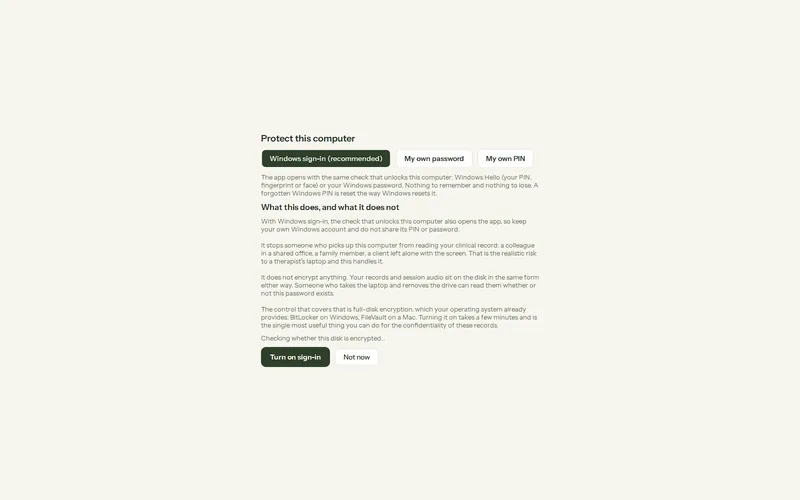
Where: Settings > Privacy and security > Sign-in and lock
Step 1: Open Settings > Privacy and security > Sign-in and lock and press Turn on sign-in.
Step 2: Choose Windows sign-in (Windows Hello or your Windows password: nothing is stored by the app), or an app password of at least 6 characters, or a PIN of at least 4 digits.
Step 3: Set Lock after (15 minutes by default).
Step 4: Read What a password does not do: it says whether BitLocker or Device encryption protects the drive, and how to turn it on if not.
- After 3 wrong tries each try is slower; an optional 5-minute pause applies after 8.
- I forgot my password on the sign-in screen: confirm with Windows that you are the account owner, then choose a new password or PIN. Computers without Windows sign-in use single-use recovery codes instead.
- Before recording on a disk known to be unencrypted, the app warns you; going ahead is logged.
Was this article helpful?
Related articles
Still need help?
Write to us. We read every message and reply within one business day.