
Move from another system: import clients, notes and recordings
Checked against the app on 24 October 2026
Coming from another practice system? Import your client list and upcoming appointments from a CSV file, bring in past notes from Word, PDF or text files, and import recordings made elsewhere.
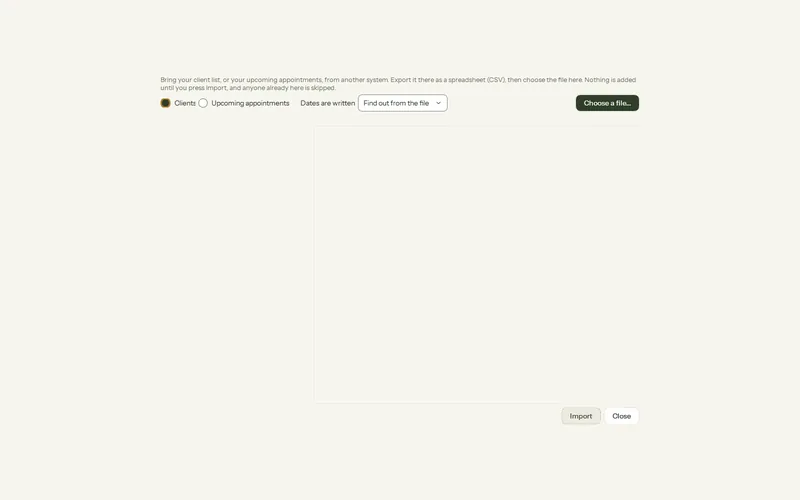
Where: Clients > + New > Import clients or appointments…
Clients and appointments (CSV)
Step 1: In your old system, export the client list, and the upcoming appointments if you want them, as a spreadsheet (CSV). Almost every practice system can.
Step 2: In Olive Grove, open Clients > + New > Import clients or appointments… and choose the file.
Step 3: Columns are matched by their names. Check each match and change any that is wrong.
Step 4: Look at what each row becomes, then import. Nothing is added before that.
- Anyone already in Olive Grove is skipped, so importing twice adds nobody twice.
- Only upcoming appointments are imported; past and cancelled ones are skipped.
Past notes
Press New > Add past sessions, choose the client, then choose Word (.docx), PDF, text or Markdown files, or paste the text. Notes are split into dated sessions in a table you check; then they are written up one at a time in the background. Your files are only read, never changed. A day that already has a session is skipped unless you tick it.
Recordings
See Add a session you did not record to import audio or video files.
Was this article helpful?
Related articles
Still need help?
Write to us. We read every message and reply within one business day.