
Oliver and Resources
Checked against the app on 28 October 2026
Oliver is at the foot of the left menu. Click him, or press Ctrl+J, and his panel slides out with what is waiting for you and a box to ask him. Resources, in the left menu, gathers your account, help, guides and support.
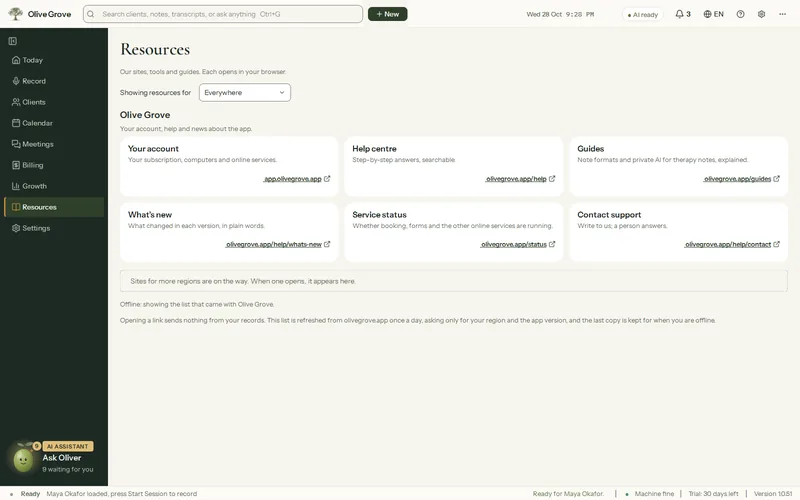
Where: Foot of the left menu (Ask Oliver), or Ctrl+J; Left menu > Resources
Oliver
- Ask Oliver, at the foot of the left menu, is marked AI assistant and says in one line what he is doing: ready, how many things are waiting for you, writing a session note, or listening during a session. It never names a client.
- Click him, or press Ctrl+J, and his panel slides out beside the menu. Waiting for you is the same list as on Today, in the same words, each with Open (or Log it for a session not recorded) and Not now. Ask Oliver sends a question to Consult, and Talk with Oliver lets you ask out loud.
- Esc, a click outside the panel or a click on Oliver closes it. The number beside Oliver is the number on Today. Not now puts an item off in both places until tomorrow.
- Clients are named by their initials, in case a client can see the screen. During a session Ctrl+J asks In-Session Assist instead, and the panel is not shown.
Resources
Resources lists your account, the help centre, guides, what’s new, service status and support, and resources for your region. Each opens in your browser. The list comes from olivegrove.app at most once a day, asking only for your region and the app version; the last copy is kept for when you are offline.
Movement and privacy
Settings > Appearance and language > Appearance: Movement (the tree and Oliver move gently, never during a session), Sessions in the dark theme, and Full names on Today (off: Today shows clients by their initials).
Was this article helpful?
Related articles
Still need help?
Write to us. We read every message and reply within one business day.