
Set up your practice in the first week
Checked against the app on 24 October 2026
The Setup assistant tracks five essentials: the notes model, your microphone, your name and practice, sign-in and automatic backups. This checklist adds the rest, in the order most clinicians need it.
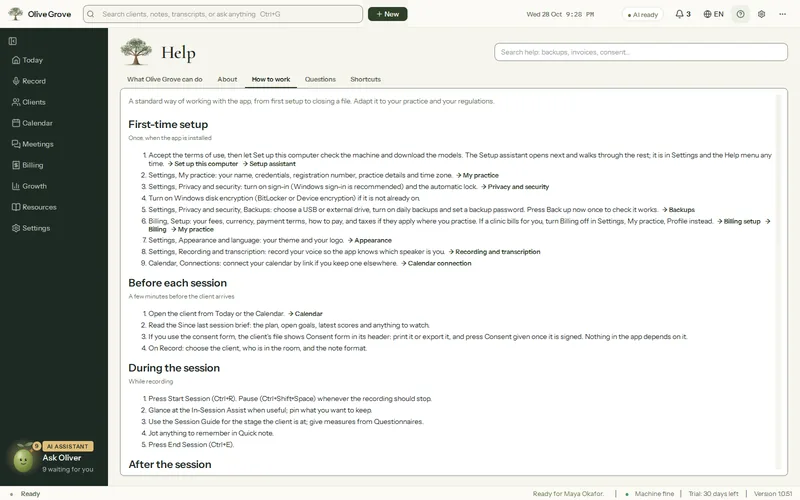
Where: Settings > Setup assistant
Step 1: Settings > My practice > Profile: your name, title, registration body and number, practice details and time zone. All optional; they appear on notes, letters, reports and invoices.
Step 2: Settings > Privacy and security > Sign-in and lock: turn on sign-in (Windows Hello or your Windows password is simplest) and the automatic lock. See Sign-in, lock and disk encryption.
Step 3: Turn on Windows disk encryption if the app says the disk is not encrypted.
Step 4: Settings > Privacy and security > Backups: choose a USB or external drive, turn on automatic backups, set a backup password, and press Back up now once. See Back up and restore.
Step 5: Settings > My practice > Crisis resources: add the crisis numbers you have checked. They are shown on safety plans.
Step 6: Settings > AI > My modalities: mark the approaches you use as Core or Occasional, so the live cues and playbooks follow how you work.
Step 7: Billing > Set up billing: your fees, payment terms, how clients pay and any taxes. If a clinic bills for you, turn Billing off instead. See Set up billing.
Step 8: Calendar > Connections: connect the calendar you already use, or start booking in Olive Grove. See Connect a calendar.
Step 9: Bring in your clients from your old system, if you have one. See Move from another system.
Was this article helpful?
Related articles
Still need help?
Write to us. We read every message and reply within one business day.