
Install Olive Grove on Windows
Checked against the app on 24 October 2026
Download the installer from your account, run it, accept the terms, and let Set up this computer download the speech and notes models. After that, the app works offline.
Where: app.olivegrove.app > Get started > Download for Windows
Step 1: Sign in at app.olivegrove.app and press Download for Windows. You get one file, OliveGroveSetup.exe.
Step 2: Run it. If Windows says it protected your PC, choose More info, then Run anyway: the installer is new to Windows, not unsafe.
Step 3: Allow administrator rights to install for everyone on the computer. If you decline, it installs for your Windows user only.
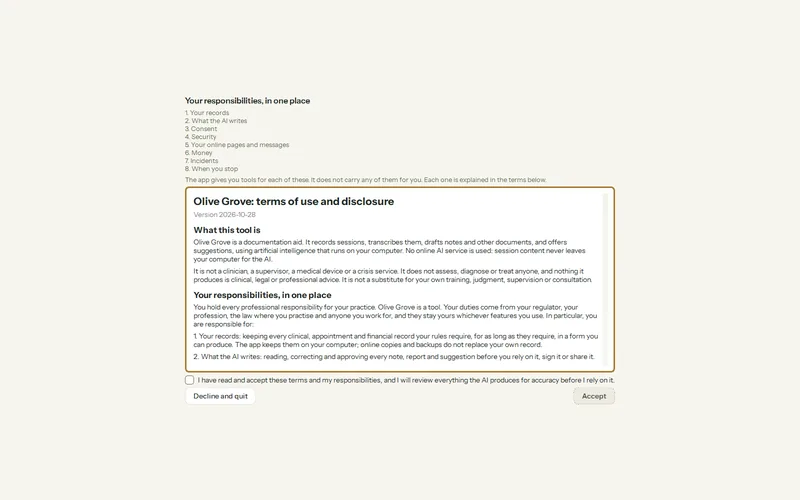
Step 4: Open Olive Grove and read the terms of use. Accept to continue.
Step 5: Set up this computer reads the memory, graphics card and processor, lists what it will download with the sizes, and starts only when you press the button.
Step 6: When the downloads finish, the Setup assistant opens. Continue with Activate your subscription.
Check the file before you run it (optional)
Your account page shows the installer’s SHA-256 under Check the file before running it. In PowerShell, in the folder you saved it to, run Get-FileHash .\OliveGroveSetup.exe -Algorithm SHA256 and compare the two values. They must match exactly.
Was this article helpful?
Related articles
Still need help?
Write to us. We read every message and reply within one business day.