
Activate your subscription on a computer
Checked against the app on 24 October 2026
In the app, open Settings > Privacy and security > Licence and choose Activate. Approve the eight-letter code on the page that opens, signed in to your account. Each subscription covers two computers.
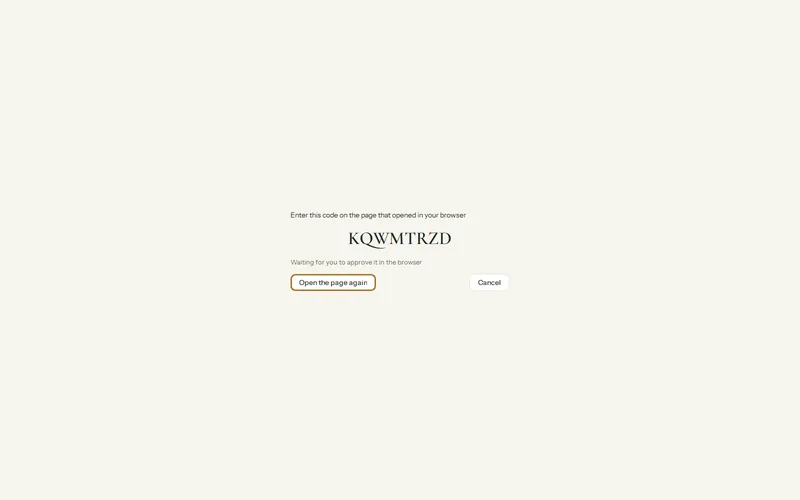
Where: Settings > Privacy and security > Licence > Activate Olive Grove
Step 1: In Olive Grove, open Settings, then Licence, and press Activate Olive Grove. The app shows an eight-letter code and opens your browser.
Step 2: Sign in on that page with the account you were invited with, if you are not already signed in.
Step 3: Check that the code on the page is the one the app shows. Give the computer a name if you like, such as “Office desktop”.
Step 4: Press Approve. The app picks up its licence by itself within a few seconds, and the footer shows how long it lasts.
The licence on the computer lasts 35 days and renews itself while you are online, once a day. It sends only the licence id, a scrambled identifier of the computer and the app version. A warning appears in the last 7 days if it could not renew.
A practice with no internet can use a licence file instead: a signed text file you paste or open in the same place. Write to support to ask for one.
Was this article helpful?
Related articles
Still need help?
Write to us. We read every message and reply within one business day.