
Review, correct and sign a draft note
Checked against the app on 24 October 2026
Each note is an AI draft for you to check. Read it against your memory of the session, use the review bar and the sources beside the note, correct it, and press Sign note. A signed note is locked; Unlock to amend keeps the signed version and asks why.
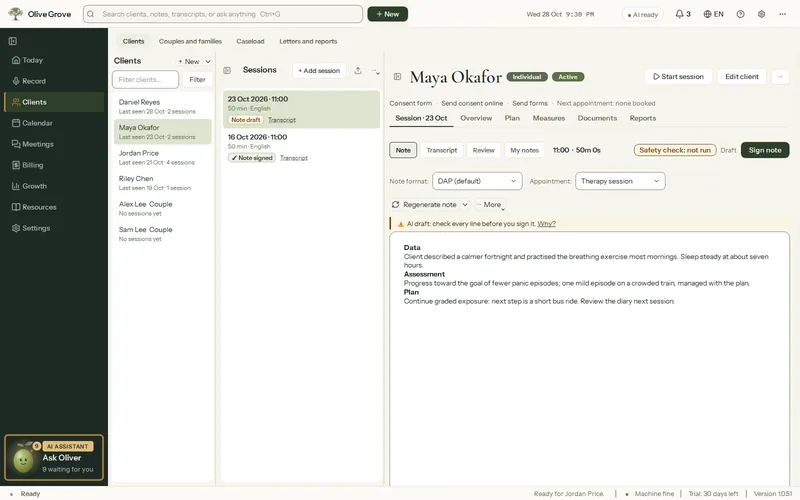
Where: Clients > a client > a session > Note
Step 1: Open the note from the footer (Open note) or from the client’s file. Drafts are marked as AI drafts.
Step 2: Look at the review bar under the toolbar: Risk, Conflicts, Unsupported and Missing, each with a count. Press a chip to list its items, and an item to see its line in the note. Mark each Resolved, Dismiss it, or Don’t flag again.
Step 3: Turn on Show sources and put the cursor in any sentence: up to 3 transcript lines it most likely came from appear beside it, with times and a Play button.
Step 4: Correct anything wrong or missing. Tidy formatting puts a draft into headings and bullets without changing a word.
Step 5: Press Sign note, tick “I have read this note and it is accurate”, and sign. The note becomes read-only.
Refine one part
Step 1: In a note that is not signed, select the words to improve (at least a few characters). Press Refine this part… under the selection, or right-click it.
Step 2: Choose Shorter, Clearer, More clinical wording or Fix grammar, or type your own instruction and press Rewrite.
Step 3: Compare Selected text with the Suggestion (you can edit it), then press Replace, or Cancel to leave the note as it was. Ctrl+Z undoes a replacement.
The safety check
After each note, a second AI pass looks for risk the note missed and statements the transcript does not support. It only flags; it never changes the note. Only a high-risk item, such as thoughts of suicide or of harming someone, shows a one-line alert above the note. It is on by default (Settings > AI > AI writing).
Change a signed note
Press Unlock to amend and give a reason. The reason goes to the activity log, the signed version is kept under Versions, and you sign again when you are done. Earlier versions can be read, not edited.
- Copy note copies it with headings and bullets but no fonts or colours, to paste cleanly into another records system, Word or an email.
- Regenerate note writes it again from the transcript, in the same or another format; blocked while the note is signed.
- Re-process from audio (Ctrl+Shift+R) transcribes the session again from its recording and rewrites the documents.
Was this article helpful?
Related articles
Still need help?
Write to us. We read every message and reply within one business day.