
Write reports and letters
Checked against the app on 24 October 2026
Write any of seven letters and reports from what is documented. You say who it is for, tick the sessions to use and fill the gaps only you know; it is written a section at a time, checked, and saved as a draft to edit, sign and export.
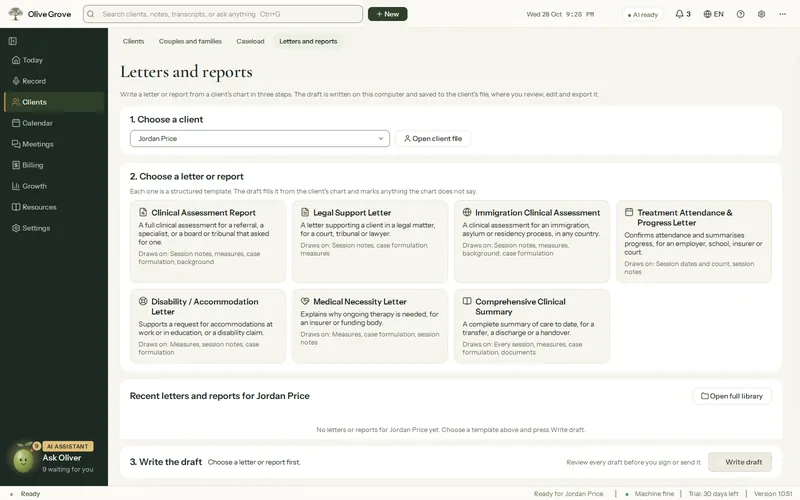
Where: Clients > a client > Reports > Generate report…
The seven: Clinical Assessment Report, Comprehensive Clinical Summary, Legal Support Letter, Immigration Clinical Assessment, Treatment Attendance and Progress Letter, Disability / Accommodation Letter, and Medical Necessity Letter.
Step 1: Open the client, then Reports > Generate report… (or Clients > Letters and reports > Write draft).
Step 2: On the checklist, say who it is for and why, tick the sessions to use, say whether third parties are relevant, and fill the gaps only you can. Only a ticked session is required.
Step 3: Press to write it. It takes a few minutes and shows in the footer.
Step 4: Before it is saved, a screen lists wording the notes do not use and sources that disagree, for you to keep or remove. Saving is never blocked.
Step 5: Open it from Saved reports to edit, Sign…, Copy or Export as Word or PDF, including a password-protected PDF.
- Every report ends with recommendations, a limitations statement and your signature block from your Profile.
- Diagnostic impressions are left out unless you choose them (Settings > Profile, or for one report). Include them only if your licence or role permits it.
- Never in a report: fees, insurance, appointment times, or words and referrals the notes do not contain. Third parties are named by role.
Was this article helpful?
Related articles
Still need help?
Write to us. We read every message and reply within one business day.