
Export the whole practice
Checked against the app on 24 October 2026
Export the whole practice in one action: a PDF of every client’s record, spreadsheets of clients, sessions, appointments, billing and measures, and, if you choose, the recordings. Seal it with a password if it leaves your computer. Your records are never locked behind your subscription.
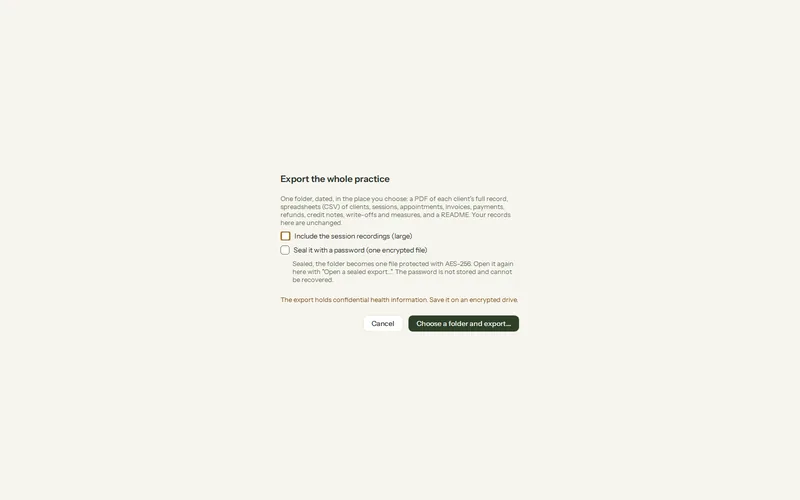
Where: Settings > Privacy and security > Backups > Export the whole practice
Step 1: Open Settings > Privacy and security > Backups and, under All charts and billing at once, press Export the whole practice….
Step 2: Choose whether to Include the session recordings (large) and whether to Seal it with a password (one encrypted file).
Step 3: Press Choose a folder and export… and pick where it goes. A progress window shows each step; Cancel leaves nothing behind.
What you get
- A folder named Olive Grove practice export and the date, with Records (one PDF per client, the same as Export full record), Spreadsheets (CSV files that open in Excel: clients, sessions, appointments, invoices and their lines, payments, refunds, credit notes, write-offs and measures) and a README.
- Recordings, only if you ticked them.
- Sealed, it is one encrypted file instead (AES-256), checked after it is written. It opens only in Olive Grove, with Open a sealed export… on the same page.
Each export is written in the activity log.
Was this article helpful?
Related articles
Still need help?
Write to us. We read every message and reply within one business day.