
Report a problem and send logs
Checked against the app on 24 October 2026
Use Help > Report a problem in the app. Describe what went wrong; the app adds the version, Windows and the end of the technical log, takes out client names, email addresses and numbers, and shows you exactly what will be sent.
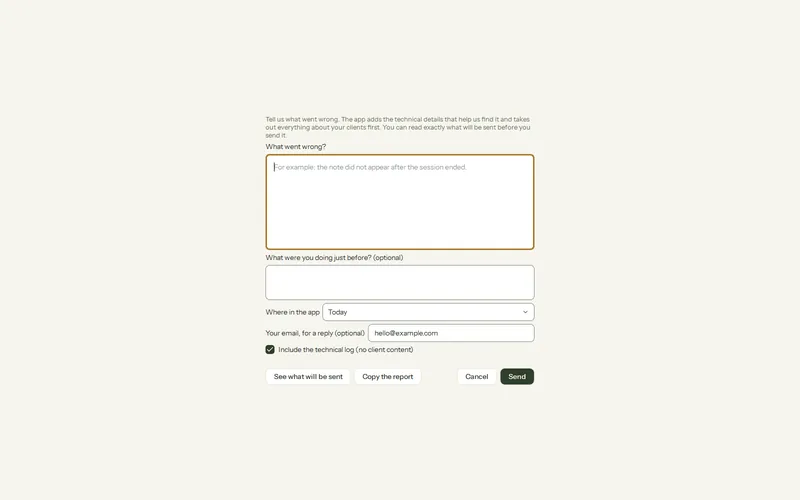
Where: Help > Report a problem…
Step 1: In Olive Grove, open Help (F1) and press Report a problem… (also in Help > About).
Step 2: Say what you were doing, what you expected and what happened instead. Never paste anything a client said.
Step 3: Press See what will be sent and read it.
Step 4: Press Send. Without a connection, press Copy the report and email it to support.
If booking pages, sign-in or payments seem down, first check the service status: it is checked live, every minute. The app keeps working on your computer meanwhile.
If we ask for the logs
More (⋯) > Help > Open log folder opens the folder of technical logs. They record what the app did, not what clients said. Attach the newest file to your email only when support asks for it.
Was this article helpful?
Related articles
Still need help?
Write to us. We read every message and reply within one business day.