
Notes are slow, or the computer is busy
Checked against the app on 24 October 2026
Notes are written on your own computer, so their speed depends on it. Check the machine indicator in the footer, use the graphics card if you have one, measure the notes model in the Model library, and close heavy programs while a note is written.
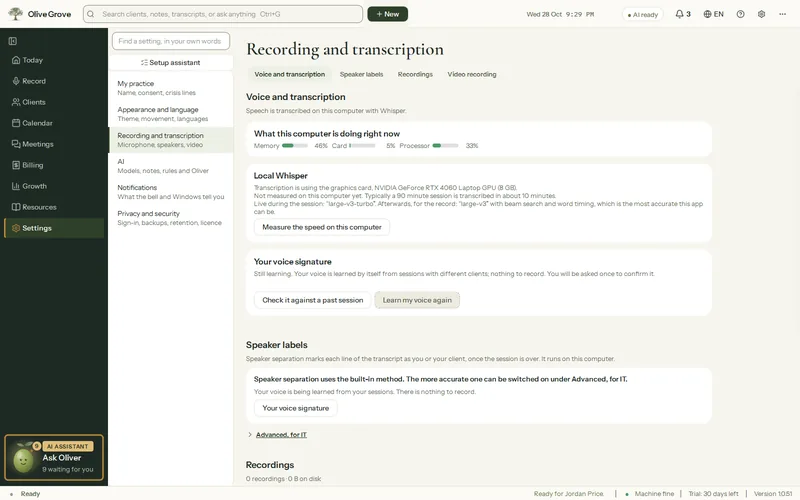
Where: Footer > Machine fine / busy / full; Settings > AI
Step 1: Look at the footer. It shows what is running (transcription, speakers, the note) with a progress bar, and a dot that says Machine fine, Machine busy or Machine full. Hover it for memory, graphics card and processor use.
Step 2: If it says busy or full, close programs you do not need, especially browsers with many tabs and video calls that have ended.
Step 3: If the computer has a graphics card, open Settings > AI > AI writing and tick Use my graphics card. NVIDIA, AMD Radeon and Intel Arc cards are used for notes and live cues.
Step 4: With an NVIDIA card, also open Settings > Recording and transcription > Voice and transcription and press Turn on graphics card acceleration (about 1.2 GB), then Measure the speed on this computer.
Step 5: Open Settings > AI > Model library and press Measure on this computer. If the chosen model is too slow, choose a smaller one with Use this model.
A model you chose yourself is never replaced automatically. To go back to the recommended one, open the Model library again and choose it.
Was this article helpful?
Related articles
Still need help?
Write to us. We read every message and reply within one business day.