
The AI is not ready
Checked against the app on 28 October 2026
Olive Grove’s AI runs on your own computer. If it is not answering, click the AI status at the top of the window: it opens the Notes AI card in Settings, with the one button that gets it running.
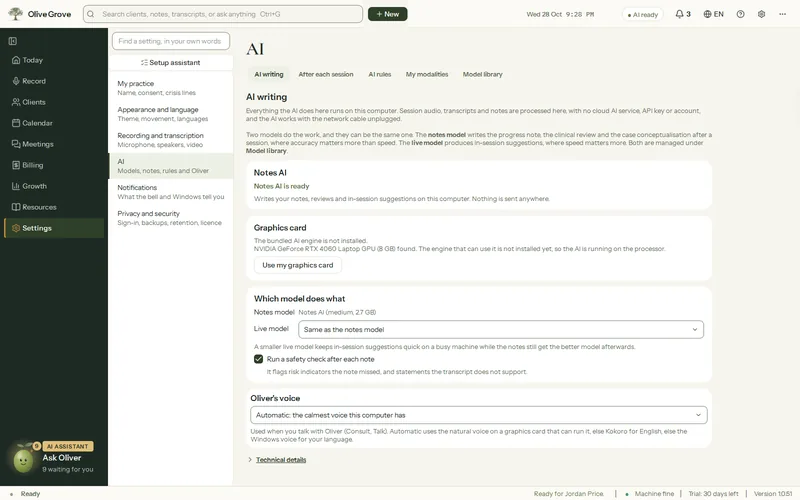
Where: Top of the window > AI status; Settings > AI
Step 1: Look at the AI status at the top of the window. AI ready means notes and live suggestions can run. Notes AI not ready means notes cannot be written yet. Live suggestions off means notes work but live suggestions do not.
Step 2: Click it. The Notes AI card in Settings says what is wrong in one line and offers one button.
Step 3: Notes AI is not running: press Start it. The status turns to AI ready within a minute.
Step 4: Notes AI is not installed: press Download the notes model. The size is shown on the button. It downloads once and then works with no internet.
Step 5: If the card offers Run setup again, press it: the setup assistant installs what is missing.
If it still does not start, see Notes are slow, or the computer is busy, or report a problem from Help in the app.
Was this article helpful?
Related articles
Still need help?
Write to us. We read every message and reply within one business day.