
The microphone or call audio is not heard
Checked against the app on 24 October 2026
Check the microphone chip on Record, let the microphone check show a level, and for an online session keep “Also capture system audio” on with the call playing through the Windows default output. A stopped stream needs the session ended and started again.
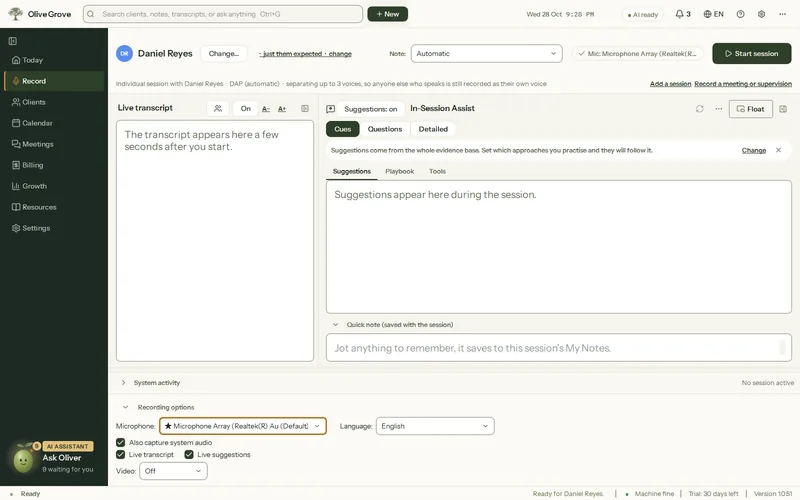
Where: Record > Recording options > Microphone
Before the session
Step 1: On Record, look at the microphone chip (“Mic: …”). If it names the wrong device, open Recording options and choose the right one. The choice is locked once recording starts.
Step 2: Press Start session. The first time a microphone is used after the app opens, Microphone check shows a level bar for about 2 seconds. Speak: the bar should move. If it does not, press Choose another microphone.
Step 3: If no microphone is listed, or the bar never moves, open Windows Settings > Privacy and security > Microphone and make sure microphone access, and access for desktop apps, are on. Then restart Olive Grove.
The other side of an online call is missing
- Also capture system audio must be ticked (it is on by default). It records what the computer plays through the Windows default output device.
- If your call plays through a headset or speaker that is not the Windows default, make that device the default in Windows sound settings, or choose the default device in the call app.
- Seeing the client in Olive Grove’s own video room? See Hold video sessions in your video room.
During the session
- Microphone level is very low in the footer: move the microphone closer, or raise its input level in Windows sound settings.
- Microphone stopped receiving audio or Call audio stopped stays on screen, with a desktop notification, when the microphone sends nothing for 15 seconds or the call audio stream ends (for example a headset unplugged).
Was this article helpful?
Related articles
Still need help?
Write to us. We read every message and reply within one business day.