
Updates: check, install and choose when
Checked against the app on 24 October 2026
Olive Grove checks for a new version a minute after it opens and every few hours while it is open, never during a recording. You choose what happens then. The footer always shows your version, and each update is checked before it runs.
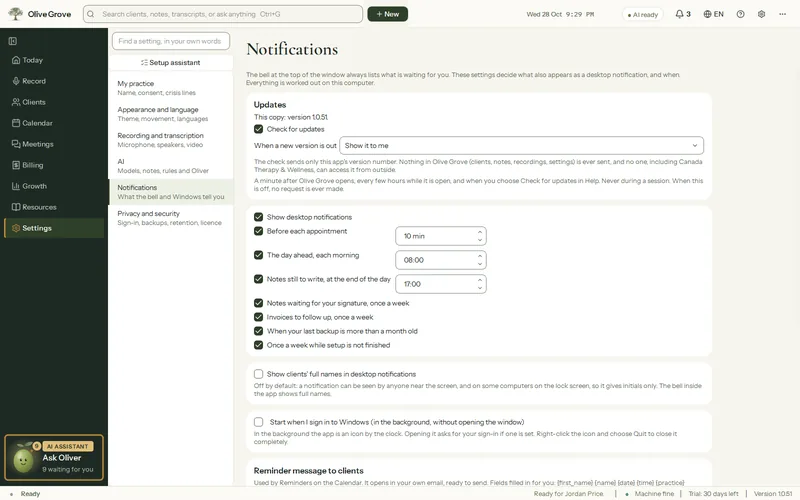
Where: Settings > Notifications > Updates
Choose how updates arrive
Step 1: Open Settings > Notifications and find When a new version is out.
Step 2: Choose show it to me (the default: the update window opens), install it when I close Olive Grove (it downloads quietly, checks it and installs as the app closes), or only a mark in the footer.
Check now
Click the version in the footer, or use Check for updates on the Help page. When a newer version is out, the footer says Update available (not while a session is recorded).
- The check sends only the app’s version number. Downloading an update also sends this copy’s licence, so updates need an activated licence.
- The installer is checked against its published SHA-256 before it runs. A download that fails the check is deleted.
- An update installs over the current version: clients, notes, recordings, settings and the licence stay where they are, and the app reopens on the same records.
If an update will not install
Step 1: A message about the licence means this copy has none the service accepts. Open Settings > Privacy and security > Licence and press Check now, or activate again. See Activation and licence problems.
Step 2: Otherwise, sign in at app.olivegrove.app, download the latest installer and run it over the old copy. Your records stay where they are.
Was this article helpful?
Related articles
Still need help?
Write to us. We read every message and reply within one business day.