
Create and send invoices
Checked against the app on 24 October 2026
Every session not yet invoiced waits in To invoice. Tick, adjust and press Create invoices: one numbered PDF invoice per client. Email it from your own email program, and add other charges when you need them.
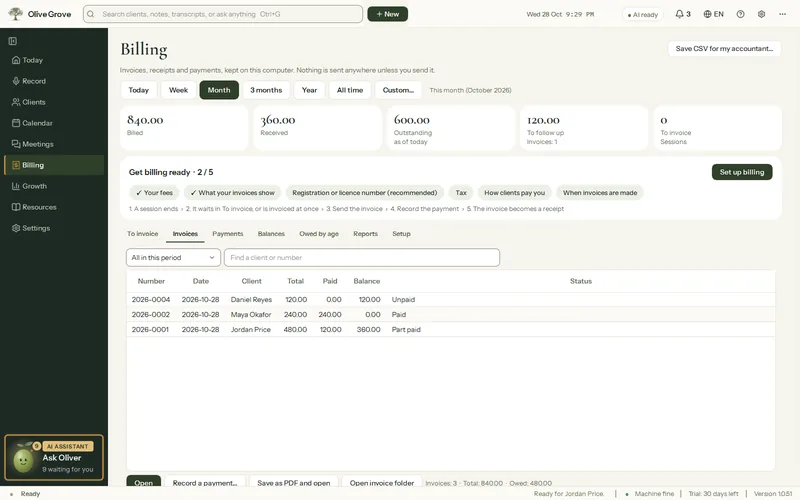
Where: Billing > To invoice
Step 1: Open Billing > To invoice. Sessions and charged missed appointments are listed, ticked and ready. Sessions under 10 minutes are never listed.
Step 2: Change an amount if needed, untick anything not to charge now, or press Don’t charge these.
Step 3: Check the Invoice date and press Create invoices. Each client gets one invoice; a joint session goes on one invoice naming the people who attended.
Step 4: Open an invoice in Invoices and press Save as PDF and open, or Email to the client…: the PDF is saved, your email program opens with the message written, and the folder opens so you can attach it. You press Send.
Other charges
Open an invoice not yet issued and press Add a charge… for an extended session, a letter, a report or a group. Tick Save this charge for next time to keep it, with its price and tax, under Saved charges (up to 50).
- Invoices are numbered by year (for example 2026-0001), with an optional prefix. Numbers are never reused.
- Filters and search find any invoice. Open invoice folder shows the PDFs on disk.
- Once saved as PDF, emailed, paid or credited, an invoice is locked. See Correct an invoice.
Was this article helpful?
Related articles
Still need help?
Write to us. We read every message and reply within one business day.