
Taxes, currency and insurance details
Checked against the app on 24 October 2026
Set up to two taxes by name and rate, added on top of your fees or included in them, or say your services are exempt in your own words. Choose any currency, and print your registration number and service codes for insurance claims.
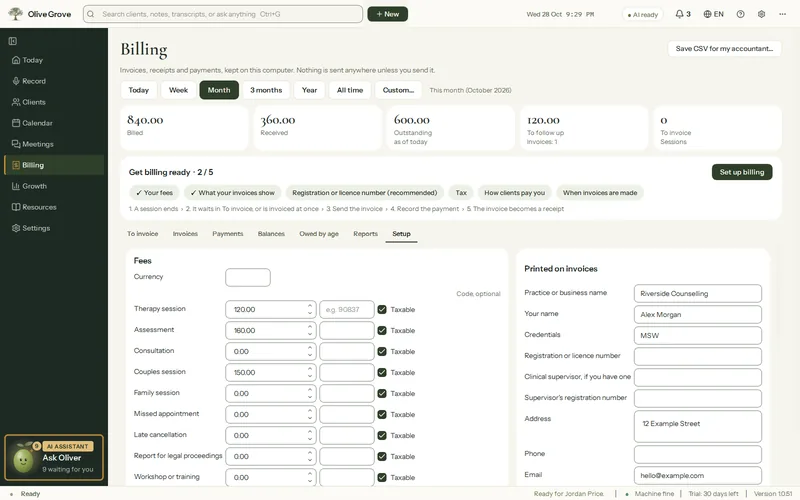
Where: Billing > Setup
Step 1: Open Billing > Setup.
Step 2: Under Tax 1 and Tax 2, enter the name and rate of each tax that applies to you. Tick My fees include tax if your prices already include it.
Step 3: Tick Taxable only on the services that are taxed.
Step 4: If your services are exempt, tick that they are exempt from sales tax and, if you like, add the statement to print on invoices and receipts.
Step 5: Choose your Currency. Until you do, it follows the country chosen at first run.
Details for insurance claims
- Your Registration or licence number, and a Supervisor if you have one.
- Service codes, set per service under Fees.
- A diagnosis code, only if you tick Print a diagnosis code on invoices and receipts and add the code in the client’s billing details. It is off by default, because in some places a diagnosis may not be shared, and appears only on invoices created after you turn it on.
Was this article helpful?
Related articles
Still need help?
Write to us. We read every message and reply within one business day.