
Payments, receipts and statements
Checked against the app on 24 October 2026
Record each payment against its invoice with the date, method and reference. Each payment gets a numbered receipt, a fully paid invoice prints as a receipt, and year receipts gather a client’s payments for insurance or taxes.
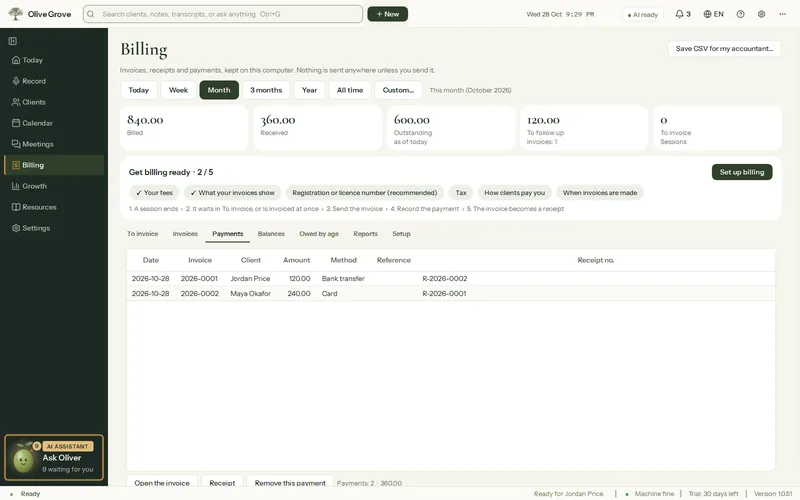
Where: Billing > Invoices > Open > Record a payment…
Step 1: Open the invoice and press Record a payment….
Step 2: Enter the date, the amount, the method (bank transfer, card, cash, mobile payment, cheque, insurance, e-transfer or other) and a reference if you have one.
Step 3: Press Receipt for the last payment to save its receipt, or find it later in Billing > Payments > Receipt.
Balances and statements
- Balances shows who owes what, and how much is overdue. An invoice is overdue the day after its due date.
- Statement for this period… makes a PDF for one client listing services, taxes, credits and payments in the period.
- Year receipts… makes one receipt per client for everything they paid in a calendar year, each payment with its receipt number and services. Untick anyone you do not want one for.
A payment recorded by mistake can be removed from Billing > Payments; the removal stays in the invoice’s history.
Was this article helpful?
Related articles
Still need help?
Write to us. We read every message and reply within one business day.