
Set up billing
Checked against the app on 24 October 2026
A step-by-step guide sets your fees, what invoices show, taxes, how clients pay and when invoices are made, saving as you go. If a clinic or agency bills for you, turn Billing off instead.
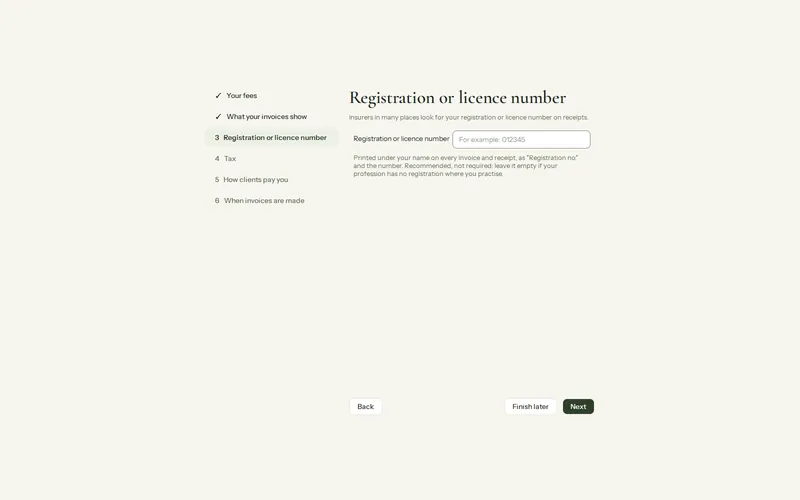
Where: Billing (Ctrl+6) > Set up billing…
Step 1: Open Billing and press Set up billing….
Step 2: Fees: a fee for each service you offer, an optional billing code, and a Taxable tick. Services include therapy, assessment, consultation, couples and family sessions, missed appointment, late cancellation, a report for legal proceedings, and a workshop or training.
Step 3: What invoices show: your practice details and logo, your registration or licence number, and a supervisor if you have one (both recommended, not required).
Step 4: Tax: up to two taxes, or a statement that your services are exempt. See Taxes, currency and insurance details.
Step 5: How clients pay: days until payment is due (14 by default, 0 to 120), payment details, the methods you accept, a note at the bottom of invoices, and the paper size (Letter or A4).
Step 6: When invoices are made: from To invoice when you choose, or after each session by themselves.
- A client’s own fee, a sliding scale reduction or someone else to bill (a parent, an insurer) is set in Billing > Balances > the client > Fee and billing details….
- Missed appointments are charged only when their fee is set.
- Your logo goes on invoices, receipts and statements: Settings > Appearance and language > Your logo.
Was this article helpful?
Related articles
Still need help?
Write to us. We read every message and reply within one business day.