
The calendar in Olive Grove online
Checked against the app on 29 October 2026
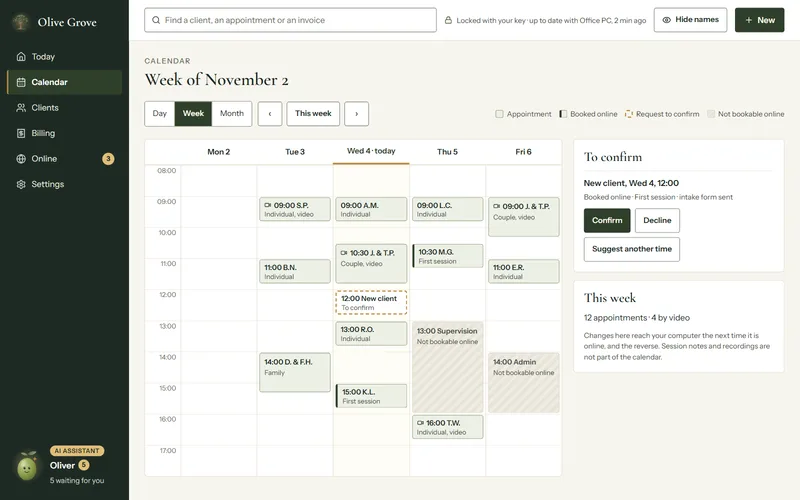
In Olive Grove online the calendar shows your day, week or month, and you can book, move and cancel appointments, confirm or decline online requests and add time not bookable online. Your computer gets each change the next time it is online.
Where: Olive Grove online > Calendar
Book, move or cancel
Step 1: Click an empty time, or choose New, then Appointment.
Step 2: Choose the client or couple, the day, the time, the service and where (in person, video with its link, or phone), then Add to the calendar.
Step 3: To move one, open it, change the day or time and choose Save changes. To cancel, choose Cancel appointment: it stays in the calendar, marked cancelled.
Requests from your booking page
A request to confirm has a dashed edge and is listed under To confirm. Confirm or Decline emails the client, as from your computer; Suggest another time opens an email to them.
The colours
| Looks like | Means |
|---|---|
| Plain green | An appointment. |
| Dark edge on the left | Booked online. |
| Dashed gold edge | A request to confirm. |
| Hatched | Time not bookable online. |
Was this article helpful?
Related articles
Still need help?
Write to us. We read every message and reply within one business day.