
A device is lost or stolen
Checked against the app on 29 October 2026
If a computer, phone or browser that holds your practice key is lost or stolen, mark it Lost or stolen. It is refused from that moment, and your practice key changes so nothing written afterwards opens on it.
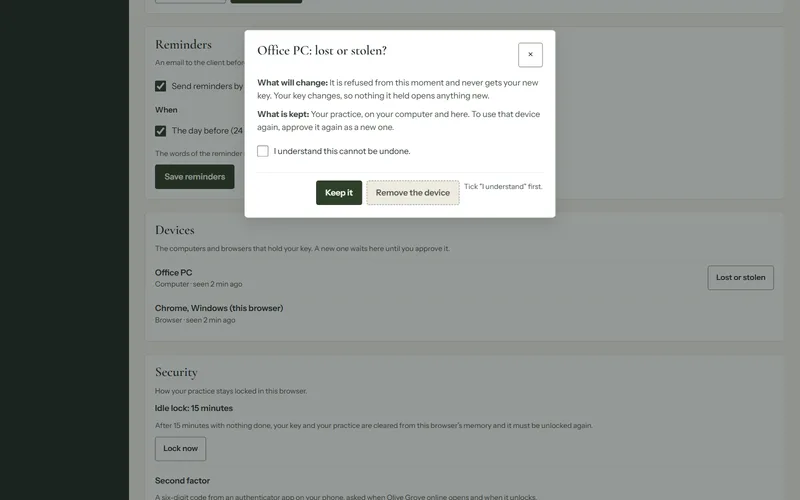
Where: Settings > Devices > Lost or stolen, or Your account > Computers
Step 1: On any device you still have, open Settings, then Devices. If you have none at hand, use your account page: signed in, it can mark a device lost or stolen on its own.
Step 2: Choose Lost or stolen beside the device. Read what will change and what is kept.
Step 3: Tick I understand, then choose Remove the device. The safer choice, Keep it, comes first.
What happens next
- The device is refused at once and its copy of your key is removed from the service.
- Your practice key changes. Olive Grove on your computer does this by itself the next time it is online; in a browser you can do it now with your recovery code (Change the key now). Until then, changes wait on your devices and are sent once the key has changed.
- Your practice is not touched, on your computer or online.
Was this article helpful?
Related articles
Still need help?
Write to us. We read every message and reply within one business day.