
Approve a new device
Checked against the app on 29 October 2026
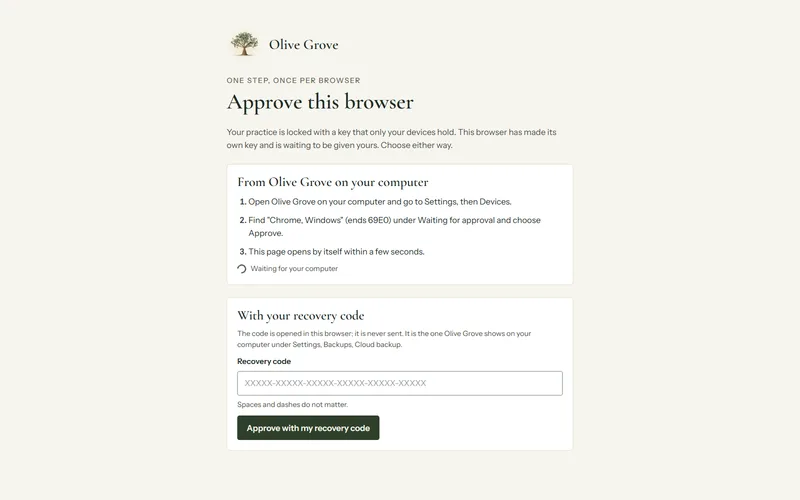
A new computer or browser waits until you approve it, so only your devices hold your practice key. Approve it from a device you have already approved, or type your recovery code on the new one.
Where: Settings > Devices > Approve
From a device you have already approved
Step 1: Open Olive Grove online on the new browser, or set up Olive Grove on the new computer. It shows its name and the last letters of its id, and waits.
Step 2: On a device you already use, go to Settings, then Devices. The new one is listed as waiting for approval.
Step 3: Check the name and the letters match, then choose Approve.
Step 4: The new device opens your practice by itself within a few seconds.
With your recovery code
Step 1: On the new browser, find With your recovery code.
Step 2: Type the code Olive Grove shows on your computer under Settings, Backups, Cloud backup. Spaces and dashes do not matter.
Step 3: Choose Approve with my recovery code. The code is used in this browser to open your key; it is not sent.
Was this article helpful?
Related articles
Still need help?
Write to us. We read every message and reply within one business day.